Managing, Saving & Combining Regions
The Qbitec tab contains the following button to manage clipped regions and combine them:

This dialog is the central place for switching between saved regions, restoring the full point cloud, saving the current clipping result, combining regions, and deleting regions that are no longer needed.
Dialog elements
The dialog consists of the following parts:
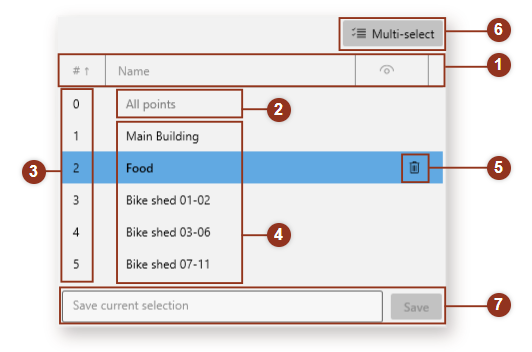
| Number | Name | Purpose |
| 1 | Header row | Toggle sort direction by clicking a header row |
| 2 | Show all points | Deactivate all clipped regions and show all points |
| 3 | Index | Stable index ordered by the time point of creation |
| 4 | Region names | Names of the regions. Double-click the name to edit |
| 5 | Delete region | Removes a region from the list and the project |
| 6 | Multi-select | Switch the dialog to a multi-select state to combine regions |
| 7 | Save | Saves the current regions to a new list entry |
The first entry in the list is All Points. Selecting it restores the default state where no clipping is applied and the full point cloud is visible. "All Points" is a special entry: it cannot be renamed, deleted, or modified. It acts as the baseline that you return to before starting a new independent clipping setup.
Each saved clipping region has an index and a name. The index provides a stable reference, while the name should describe the practical purpose of the region, such as "Main Building", "North Facade", or "Bike Shed". You can edit a region name by double-clicking it.
Clear names are important when several team members work with the same Revit project or when a project accumulates many focused regions over time.
To save a region, first create the clipping result you want. This can be a single Window, Fence, or Circle section, or it can be a refined result built from several consecutive operations. Then open the manager and save the current view as a new region. The saved region is stored in the Revit project and remains available across sessions.
Combining regions
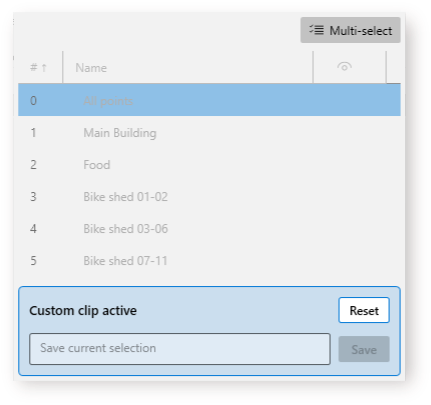
Regions can also be combined. When Multi-select is enabled, multiple saved regions can be active at the same time. In that mode, selected saved regions are combined with an OR relation: points are visible if they are inside any selected region. This is useful for showing several separate areas together, such as a main building and an outbuilding, without merging them into one manually drawn boundary.
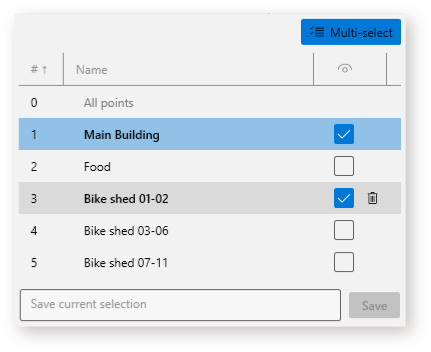
Delete removes a saved clipping region from the project. The delete button is available for regular saved regions, but not for All Points. Deleting a region does not delete point cloud data; it only removes the stored clipping definition. Before deleting shared project regions, make sure the region is no longer needed by other workflows or team members.
Example: A user isolates the main building with several Fence operations and saves the result as "Main Building". They then select All Points to restore the full cloud, isolate the bike shed as a separate area, and save that result as "Bike Shed". Later, when both areas must be shown together, the user enables Multi-select, selects both saved regions, and saves the combination as "Main Building with Bike Shed". If an older temporary region is no longer useful, they delete it from the manager; the point cloud data itself remains unchanged.