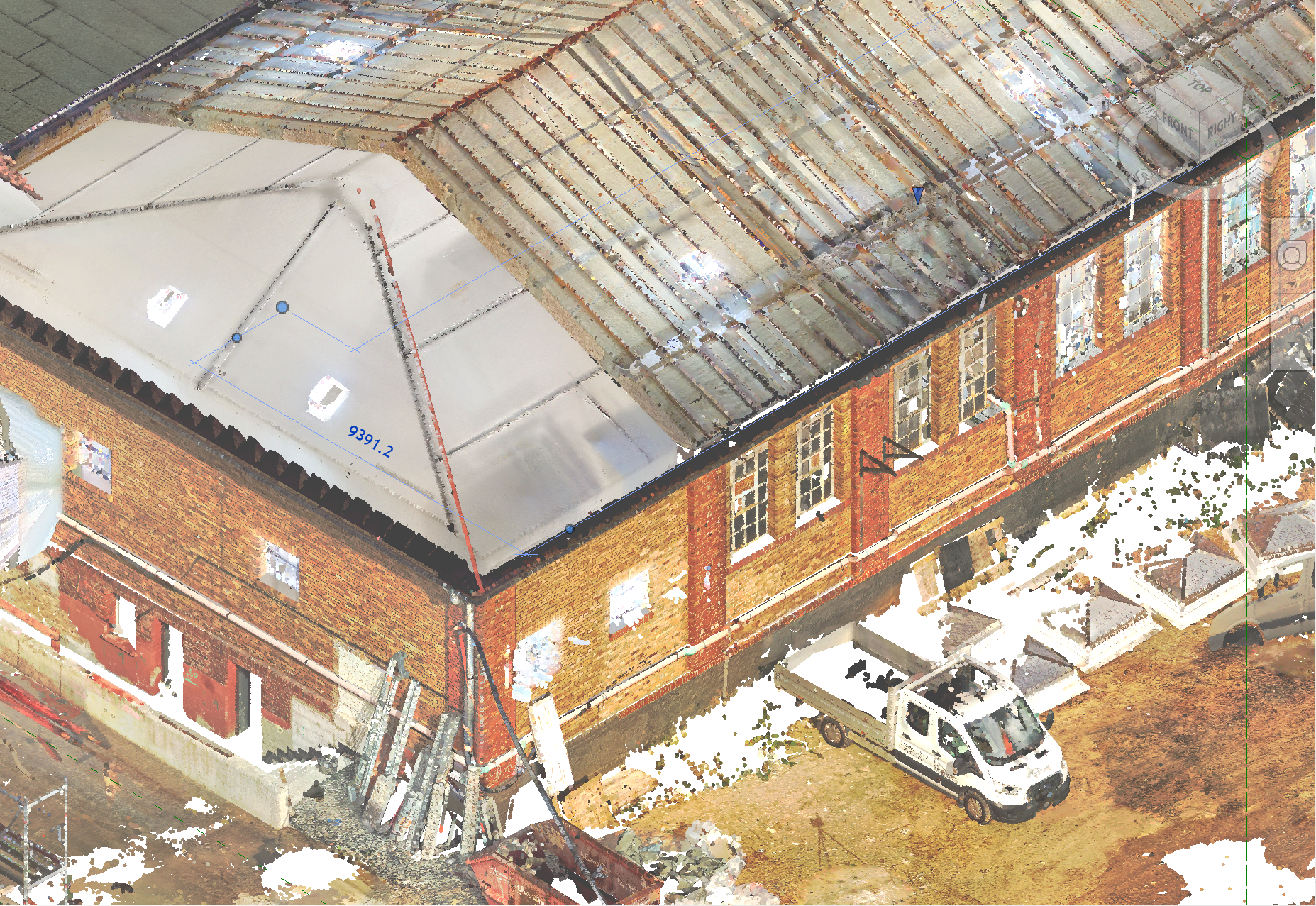
Point Cloud Display Settings
Settings are stored per view
Adjusting the Point Size
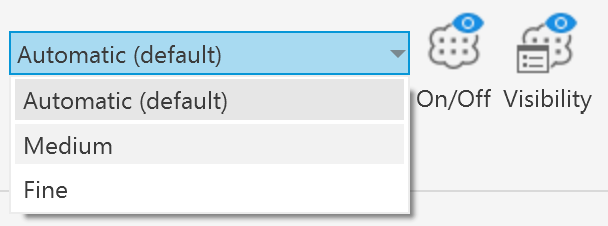
The point size used for rendering the point cloud can be adjusted. Three predefined options are available: Automatic, Medium, and Fine.
Fine
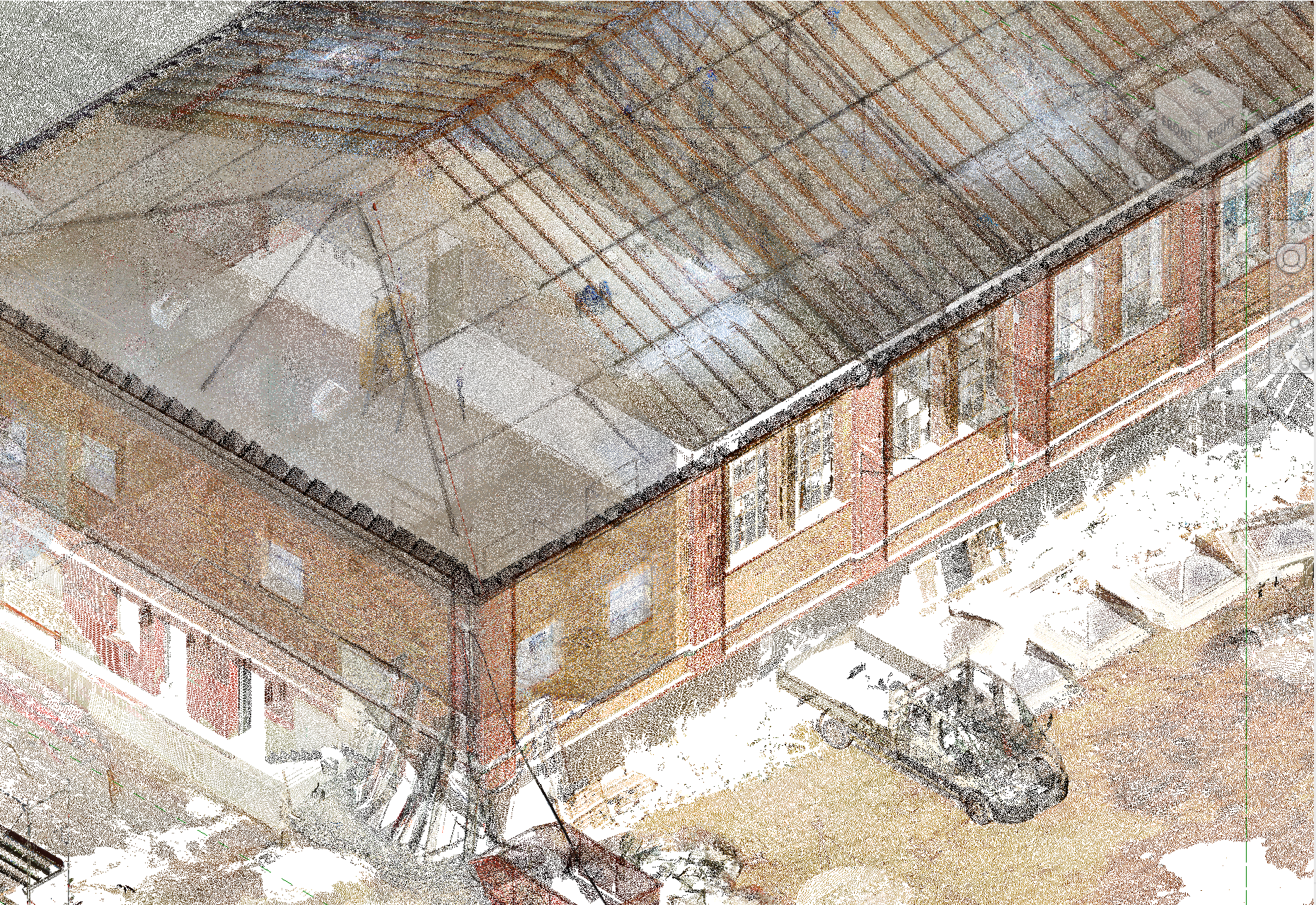
The Fine setting uses a small point size similar to the point cloud rendering used to display ReCap point clouds in Revit. This can often create the effect that the point cloud becomes visually sparse, allowing the viewer to see through it so that surfaces become difficult to recognize.
Automatic (default)
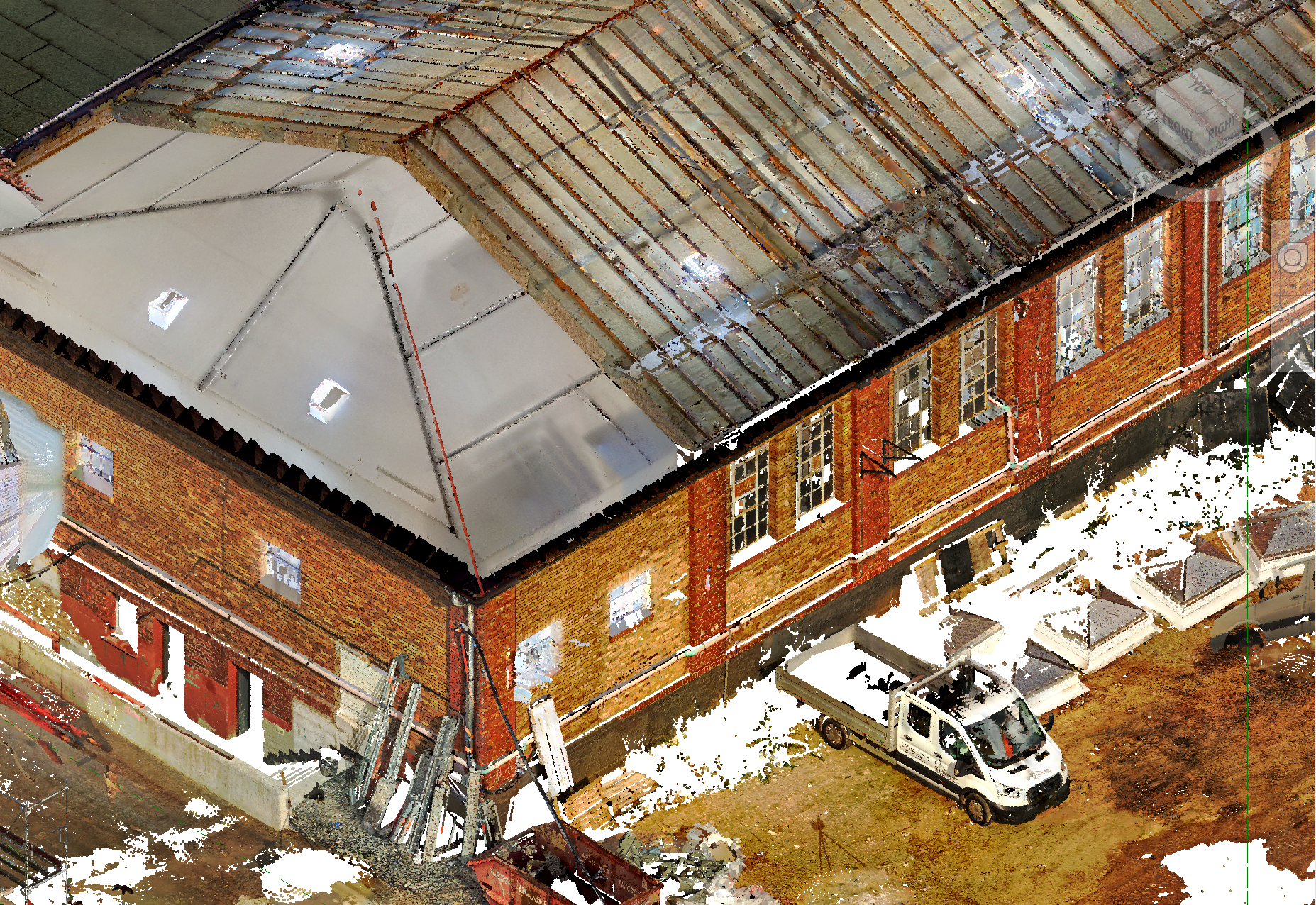
The Automatic setting attempts to choose a point size that keeps surfaces such as walls visually closed and easier to interpret, while Medium provides a compromise between the two extremes.
For additional control, the point size can also be manually adjusted.
Therefore open the display settings by clicking on the Settings-button
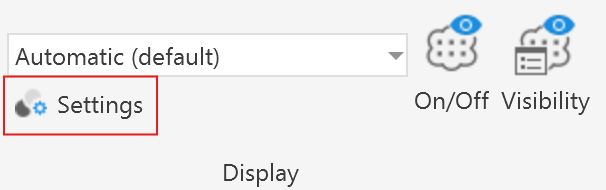
And adjust the Point size using the point size slider.
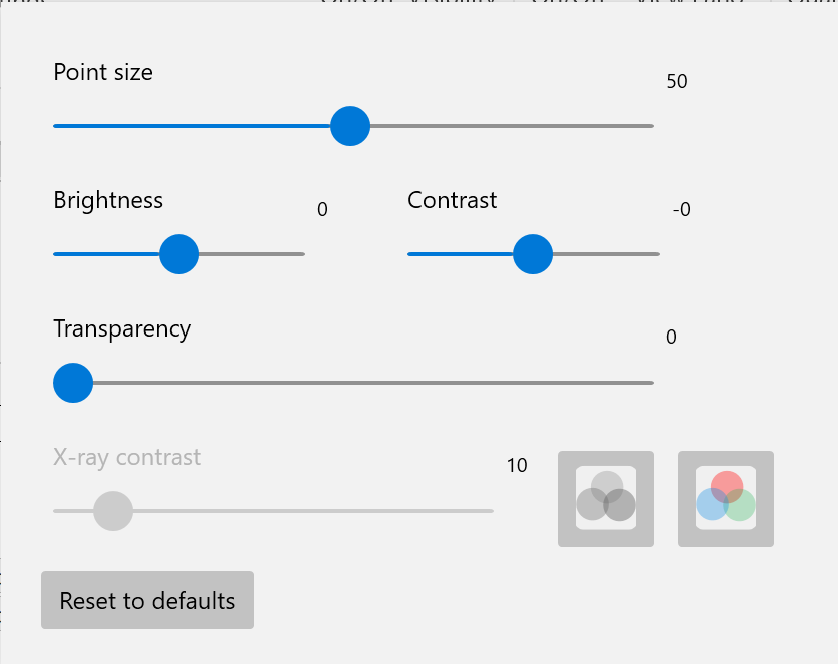
In the Setting Window you can also find a few other settings to control the visual appearance of point clouds.
Brightness and Contrast Slider
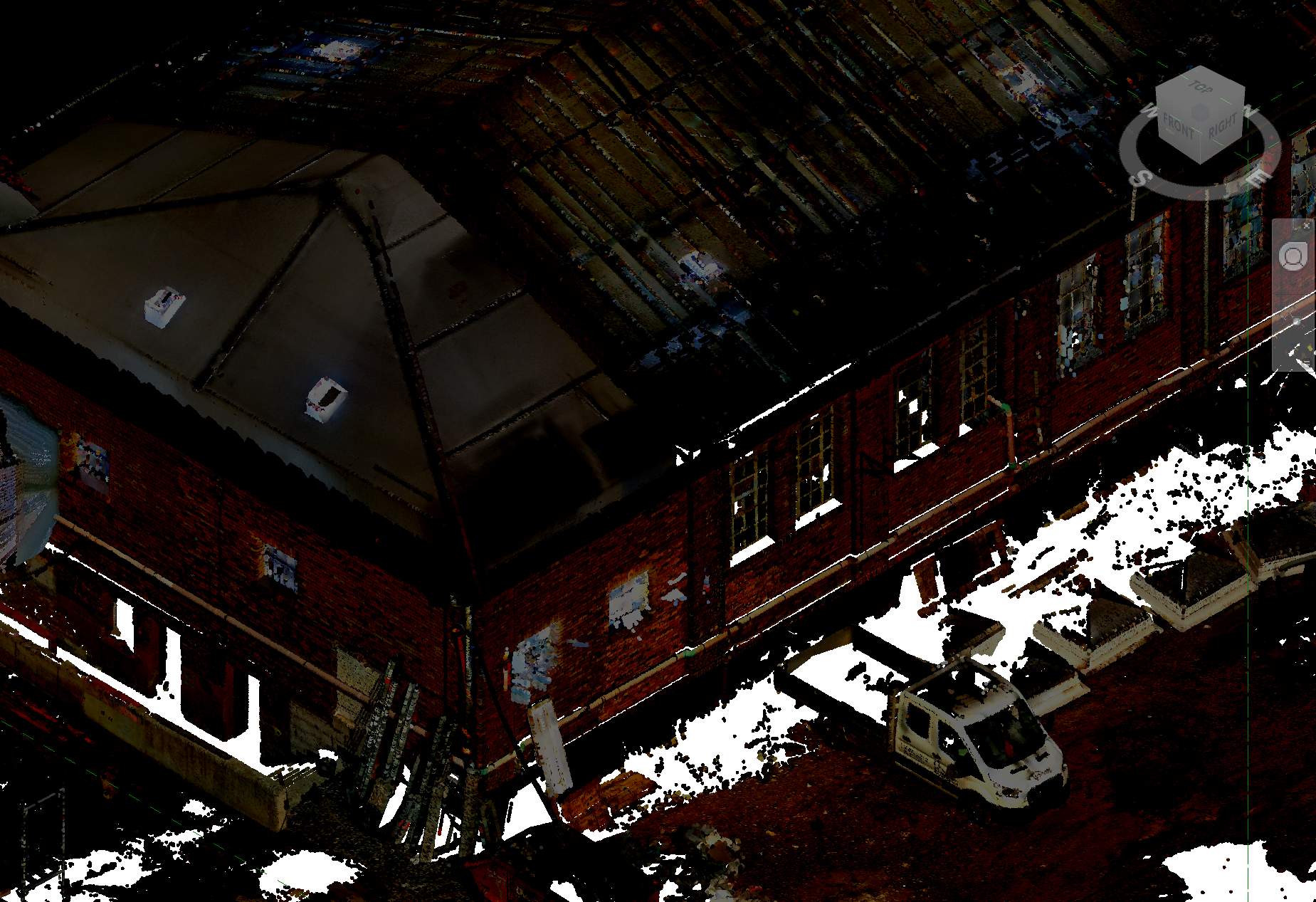
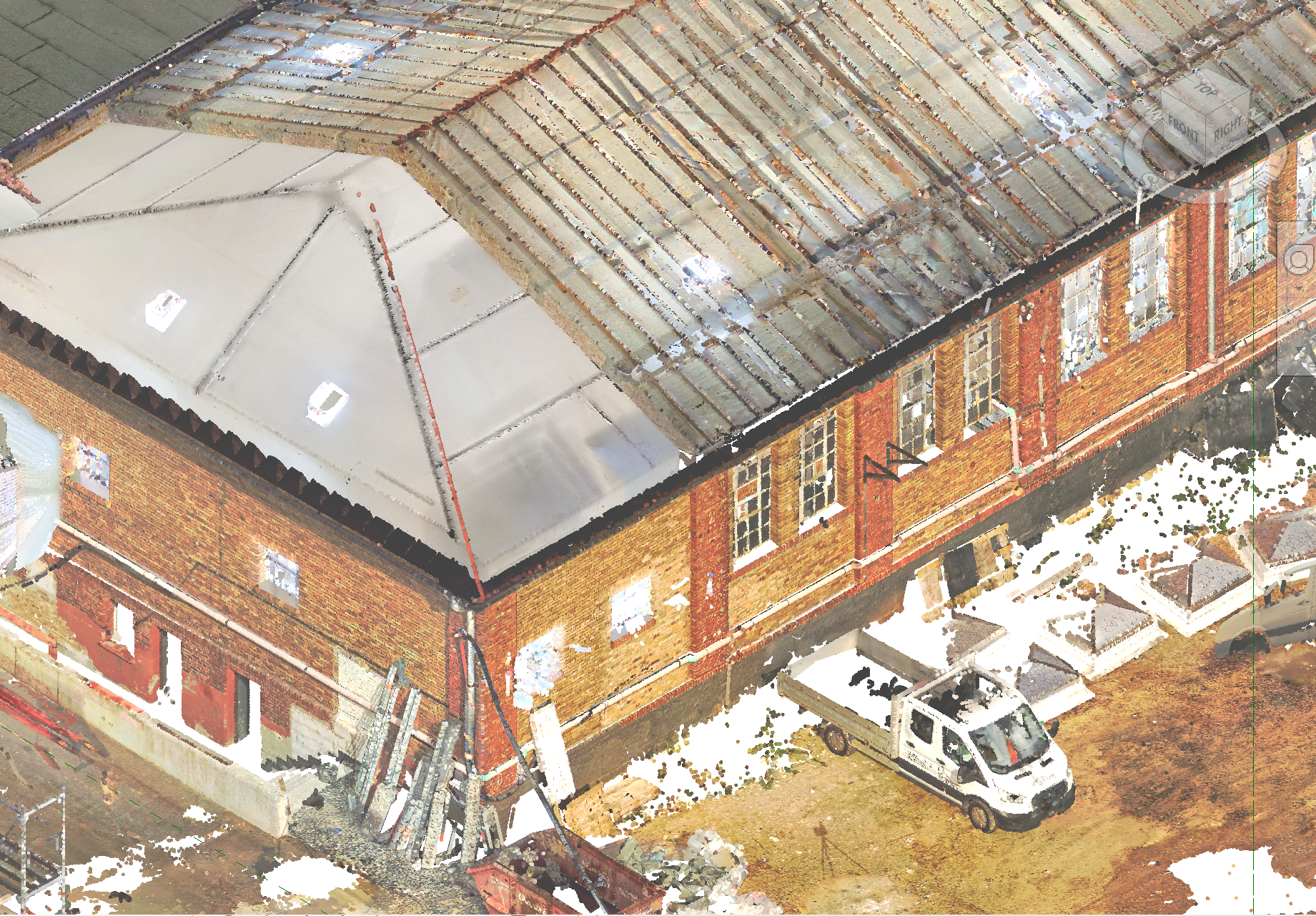
LiDAR scans are sometimes captured under poor lighting conditions, such as in the evening or in dimly lit indoor environments. In these cases, adjusting the brightness and contrast can help enhance visibility and reveal more details in the data.
Transparency
The transparency of the point cloud can also be adjusted using a slider, allowing internal geometry to become visible that would otherwise be hidden behind the outer layers of the point cloud.