
License Activation and Deactivation
Prequisites
Before you can activate the Qbitec for Revit plugin on your PC, you need valid license user credentials consisting of a username (email address) and a password. Please also check your spam folder if you have not received your login details.
For a trial license, the credentials will be sent directly to the email address you provided after requesting the trial on the website.
For a purchased version or a a team trial, the initial login credentials for each created user are managed by the license manager of the plugin. Through the web interface, the license manager can view the initial password as long as it has not yet been changed. If a user forgets their password, the license manager can reset it there.
More details about the license user management can be found here: License Management
If you still encounter problems, please contact Qbitec support at: support@qbitec.com
License Activation
When using the plugin for the first time on a PC after installation, a warning triangle on the Config/License button in the Qbitec ribbon indicates that you need to activate your license before the plugin can be used.

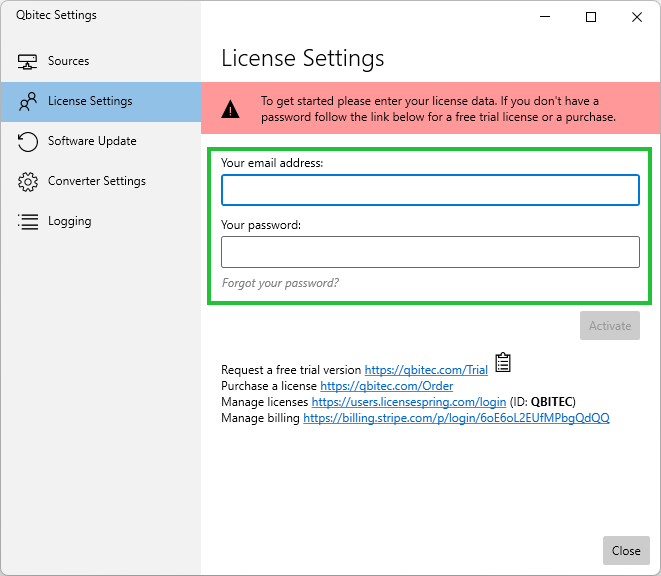
Click the Config/License button to open the Qbitec Settings dialog. Enter your user email and the corresponding password in the designated fields, then click the Activate button.
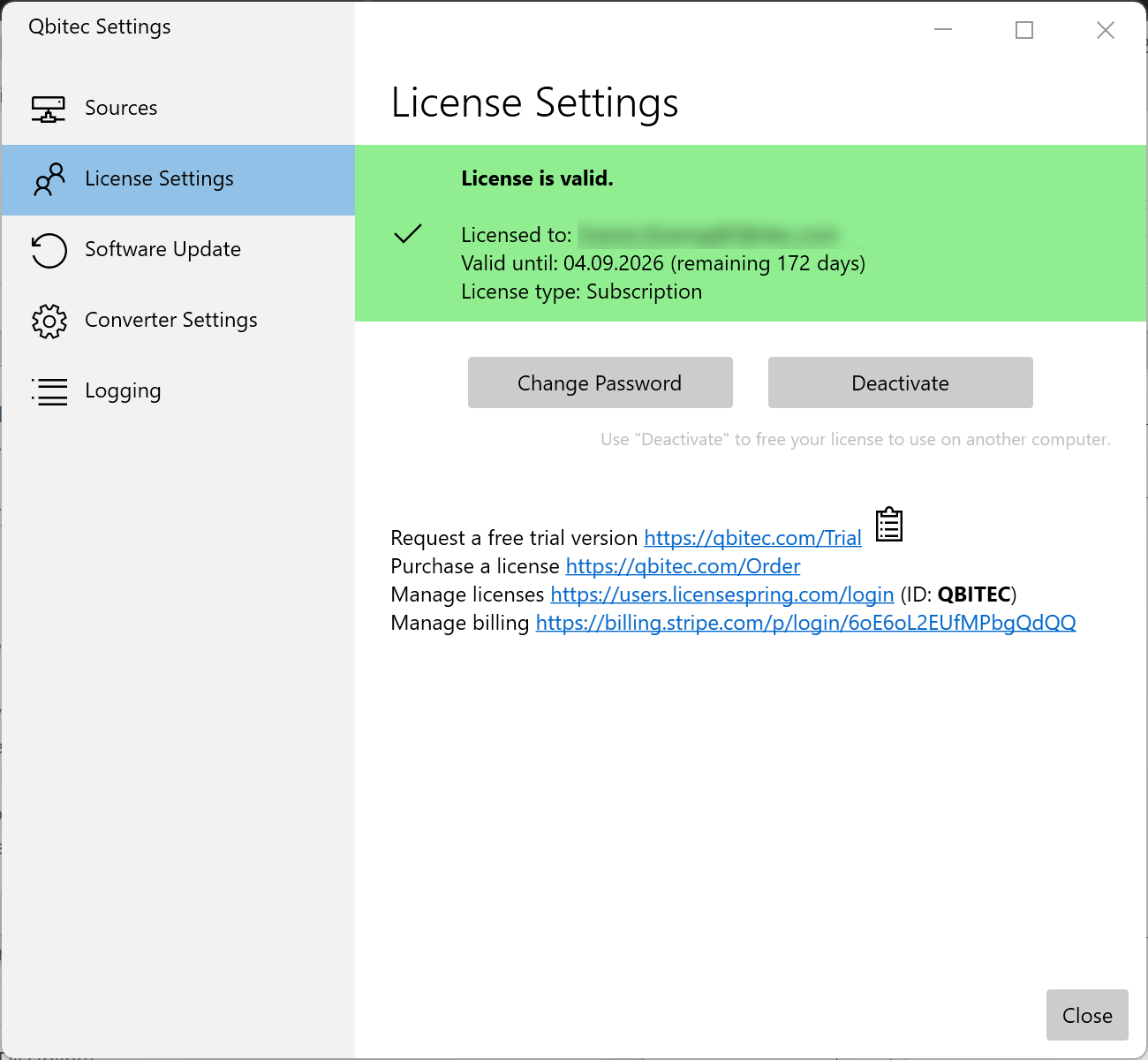
If the activation was successful, the license information is displayed is now shown in the license settings like this:
Troubleshoot Activation Failures
There can be multiple reasons why an activation could fail. Here are the most common ones together with possible solutions:
Incorrect credentials
In case the entered login data was incorrect the following message is shown:
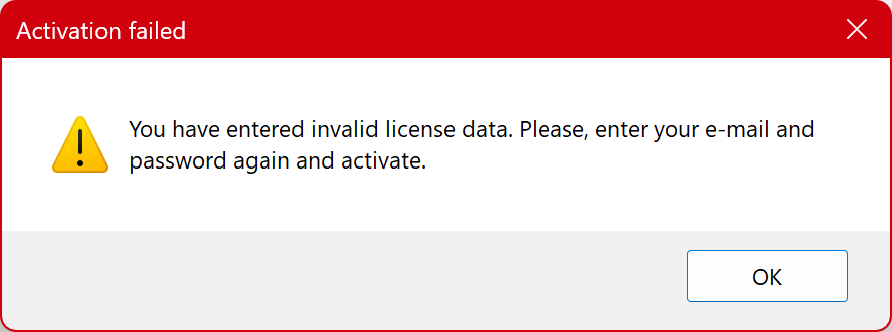
Please retry to enter the correct credentials. If you have lost/forgotten your password the associated license manger can reset the password of a specific user on the web interface. See Managing License for more Details: License Management
Internet Connection Problems
To activate a license, the plugin must be able to communicate to the license spring server. Here an example of a shown error message due to internet connection problems:
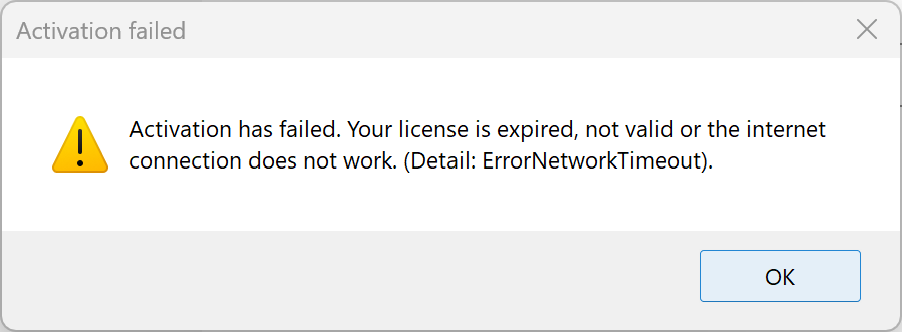
Before proceeding, first verify that you have a working internet connection, for example by visiting a website in your browser.
If you are unable to access the internet, try reestablishing your connection by checking your Windows network settings with the assistance of your company’s IT administrator.
If your internet connection works in the browser but you are still unable to activate the plugin, a proxy server or firewall rule may be blocking communication with the integrated License Spring Server. Please refer to our section on Advanced Installation Topics for more details.
Expired or Invalid Licenses
If the activation failed because your license is expired or is already activated on a different machine you may end up with an error message like this:
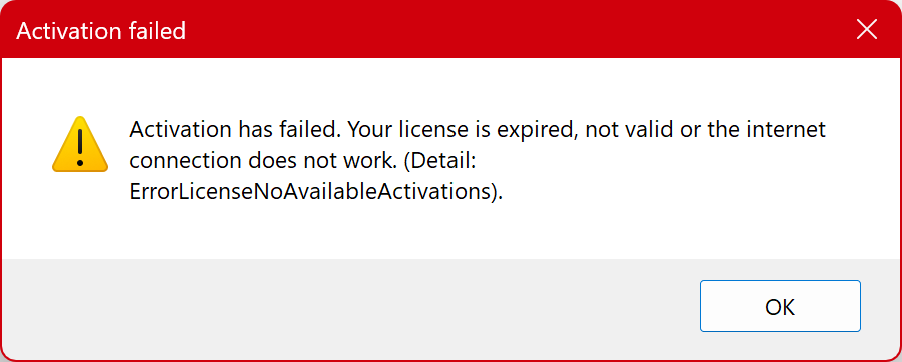
First, check whether your license has expired or is still activated on another device. If necessary, deactivate the license on the other machine.
If you are unable to resolve the issue, please contact support@qbitec.com for further assistance.
Transferring a License to another PC
Once a license has been activated for a user on a workstation, it is bound to that machine. To transfer the license to a different workstation, it must first be deactivated on the original machine before it can be activated on the new one.
To do this, open the License Settings in the Qbitec Settings dialog. The currently active license will be displayed there. To deactivate it, simply click the Deactivate button.
If you cannot deactivate the license on the old machine — for example, if it is broken or inaccessible — you can also resolve the issue by logging into the license management portal at https://users.licensespring.com/login using your license user credentials and the company code QBITEC. For more details, see License Management