
License Management
This page explains how to flexibly assign Qbitec licenses to individual users within a company.
Here's a 2-minute video that shows the process
Step-by-Step Process
Log In & Dashboard
Access the licensing system,portal, LicenseSpring and log in using the Company IDcode QBITEC along with the email and password provided in your registration email.
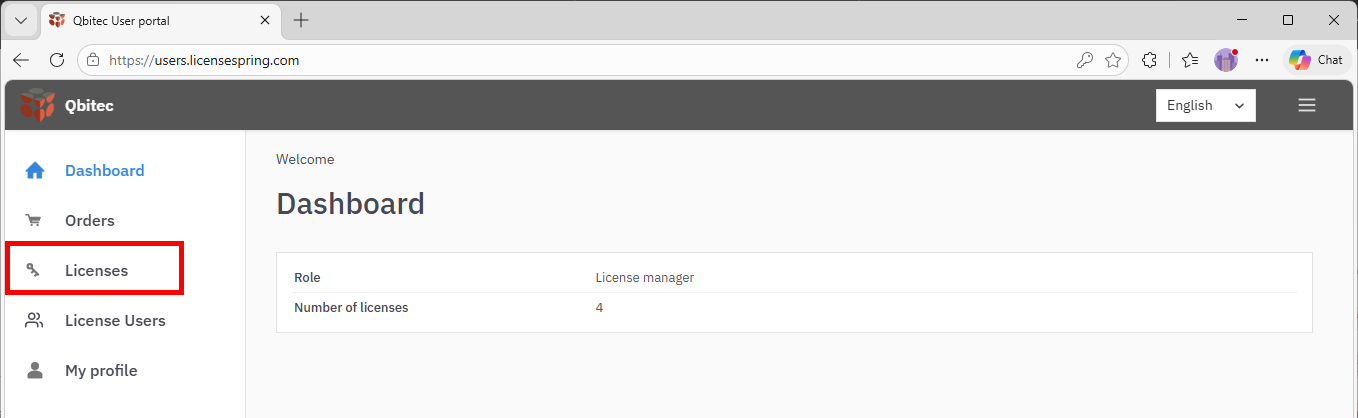
Access DashboardLicenses
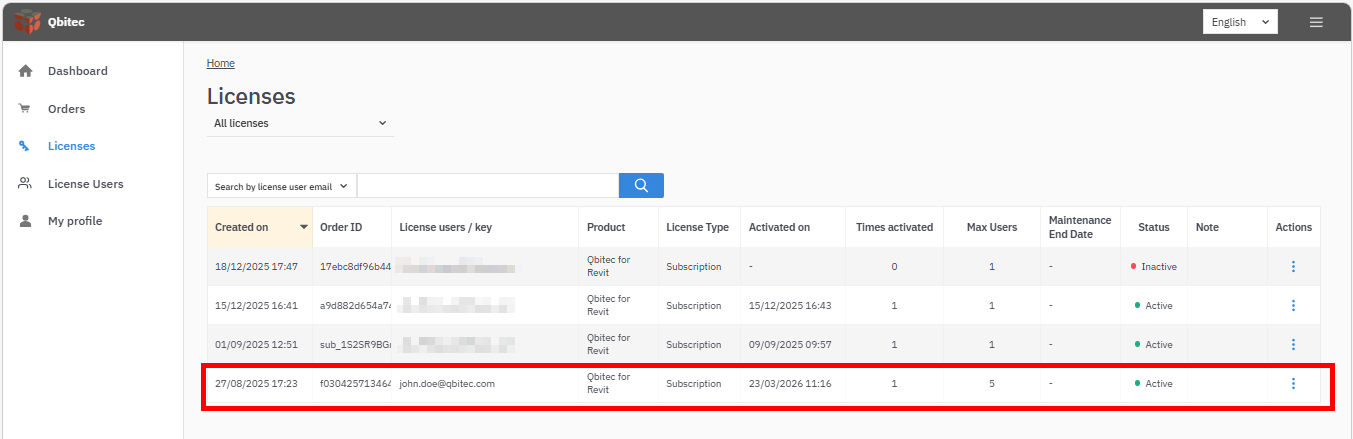
OnceThe loggedLicenses in,section provides an overview of all the licenses associated with your user account. Click on a row in the list to manage a particular license.
License details
The License details page provides a concise overview of a software license, including its identity, type, and current status. It outlines the license lifecycle, such as creation, activation, expiration, and any grace period. The page also defines usage rules, including activation limits, device restrictions, and transfer permissions. Additionally, it shows user allocation and tracks activity like activation history and last validation.
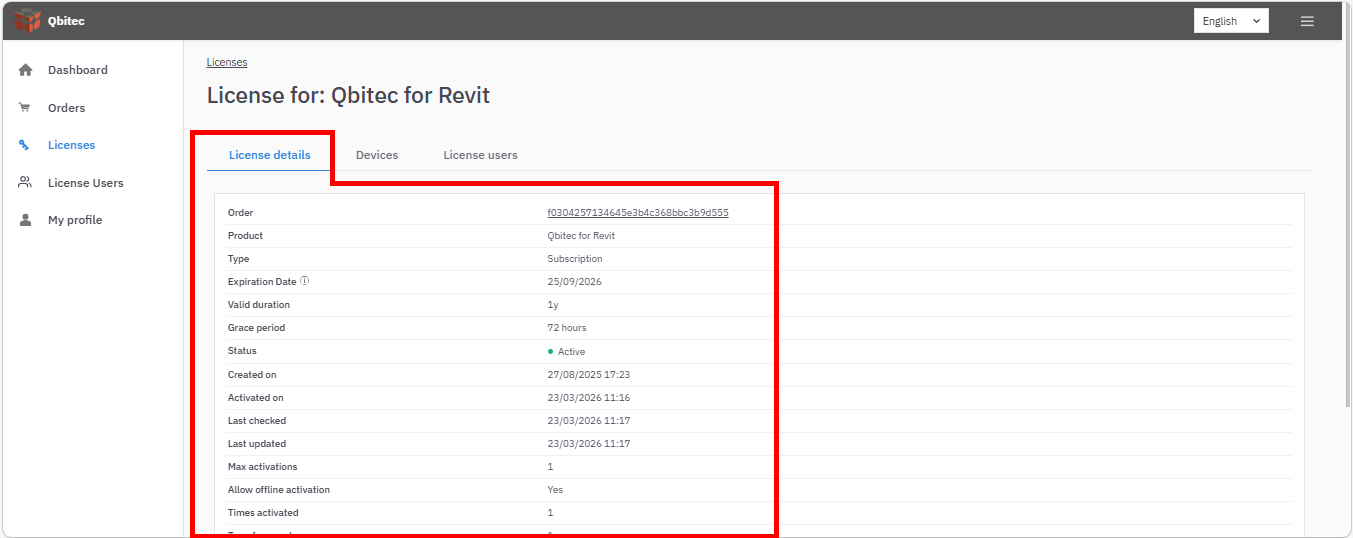
Overall, it serves as a central snapshot for managing and monitoring license usage and compliance.
Devices
The Devices section provides an overview of all devices for which the license has been activated, as well as the current activation status.
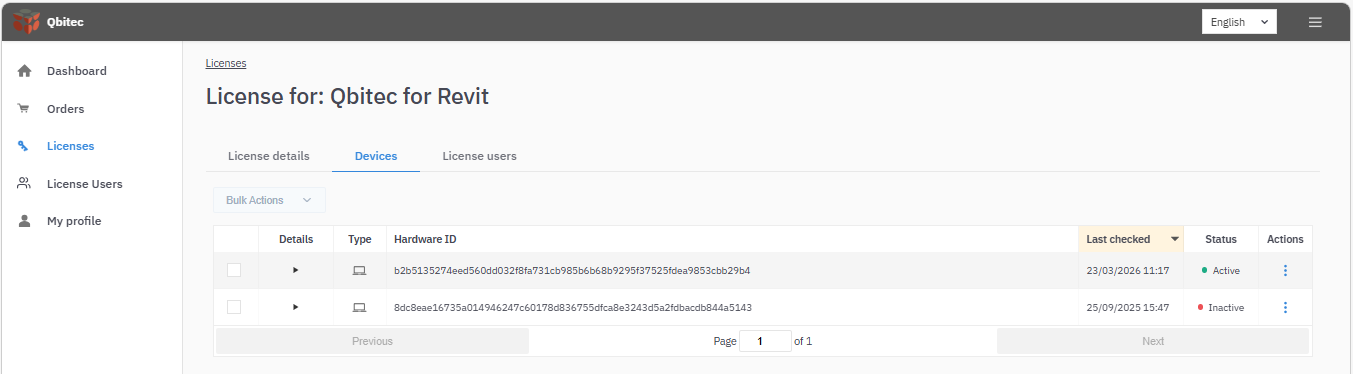
Select ofthe seatsDetails available.drop-down menu to view more information about the device.
Assign a User
A tolicense seecan seatbe availability.used by multiple users, and you can assign, reassign, or remove users here.
Click
Select Assign license user and enter the email address of the new user'suser:
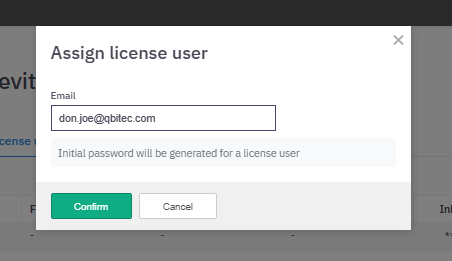
A new license user will be created as long as the maximum number of license users is not exceeded (see License Details). Copy the Initial password and provide these credentials to the new license user, who will then be able to activate the license and change the initial password.

From the Actions menu, you can change the email address.
Confirm to generate an initialor password for the license user, or remove the user to make room for others. You can also reset the total activations for that user.user, which deactivates their license on any device. You can set the maximum number of activations to allow the user to activate the license on multiple devices, as long as the total number of activations for the license is not exceeded (see License Details).
Share Credentials: You will see the new user's email and initial password, which you should share with them securely so they can log in.
Managing Licenses
Reassignment: Licenses can be reassigned to different team members as needed.
Removing Users: If a user no longer needs access, you can remove them from the list to free up a seat for someone else.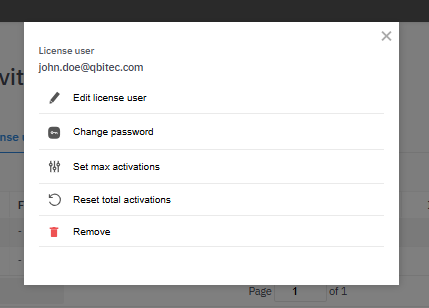
If you need further assistance, the video advises contactingcontact the Qbitec support team support@qbitec.com