Manage License Billing and Renewal
Qbitec processes payments and subscriptions via the stripe service, one of the biggest financial service providers.
Stripe offers a customer portal, which allows you to:
- View your customer details
- View and download your past invoices
- View and change your current subscription
- Cancel your subscription
- Change your payment methods
Accessing the customer portal
You can access the portal by using the link that was sent to you in the same email that contains your license credentials. The address is:
https://billing.stripe.com/p/login/6oE6oL2EUfMPbgQdQQ
Please follow these steps to log in:
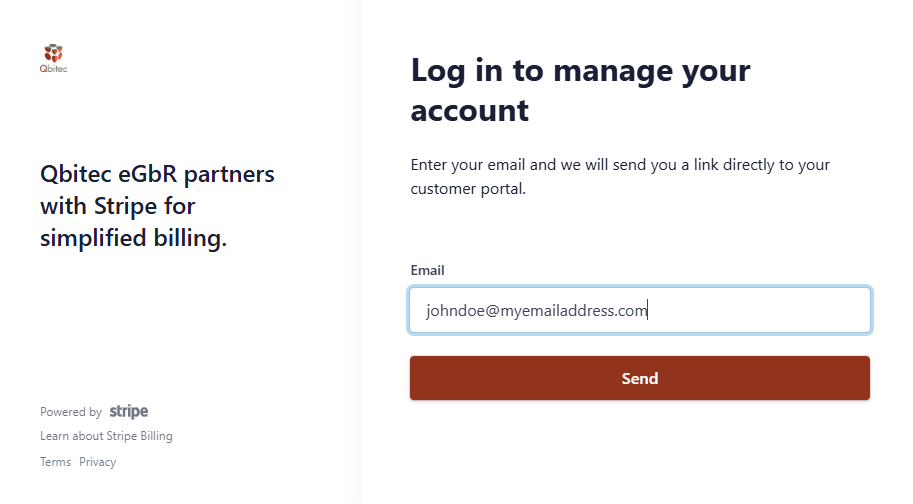
1. Enter the same email address you made the purchase with and click "Send"
2. In your email inbox find an email called "Your customer portal login link" from "Qbitec eGbR".
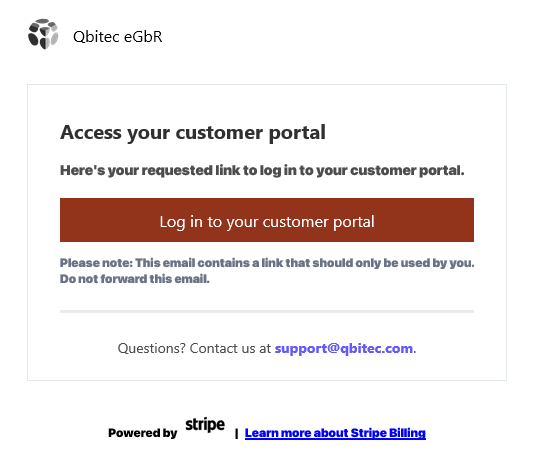
3. Click the button "Log in to your customer portal" to access the main page of the portal.
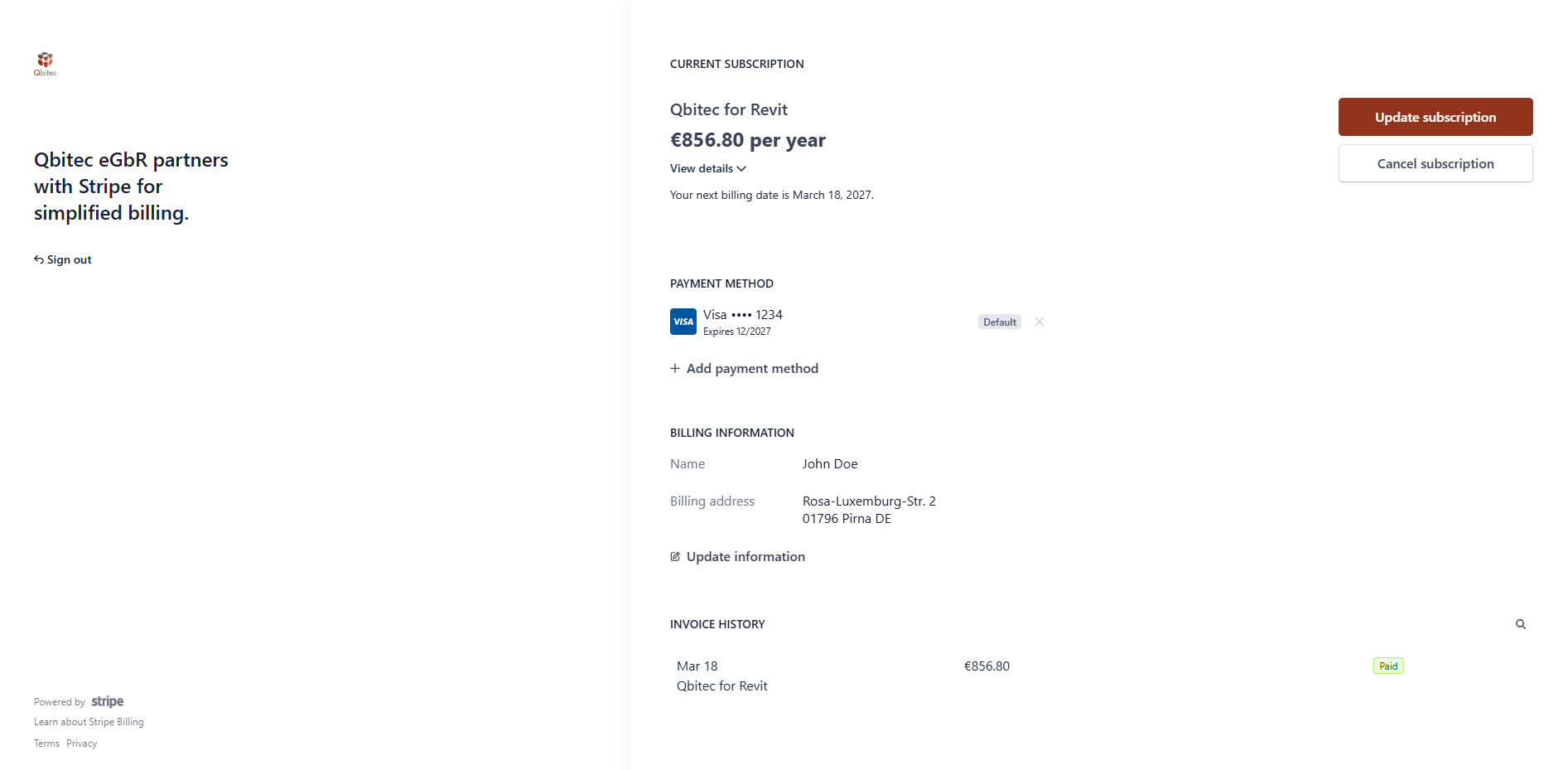
This page shows your current subscription, your currently active payment method, invoice address information and the invoice history, along with buttons to change or add information.
Updating your subscription
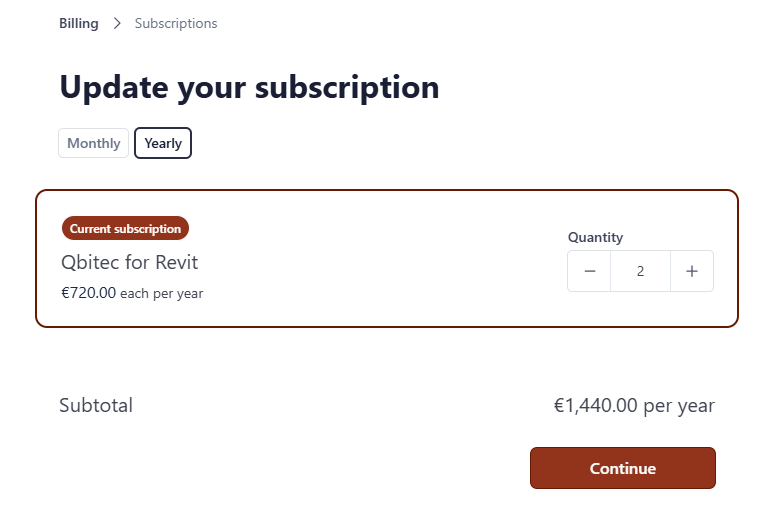
Clicking "Update subscription" on the main portal page opens a dialog to
- Update the quantity of your licenses and
- To change the billing cycle between annual licenses and monthly licenses
Before any changes take effect, you can review the effects on the licenses and the costs.
Updating the quantity
Clicking the "+" button will increase the number of licenses, while the "-" decreases the number of licenses.
If you increase the quantity, your new licenses will be available immediately. Your new licenses will be synchronized with the existing billing period and prorated (to the exact seconds).
For example: You start a yearly subscription on Feburary 12 for one license, which will be valid until Feburary 12 at the same time the following year. On May 10, you increase the amount to two licenses. Now both licenses will be valid until Feb 12 in the following year and then renew automatically. You will be charged the remaining amount until the end of the billing period (Feb 12), and then from the next period forward, both licenses will be charged fully. That means, if your first license started on Feb 12, 12:00 and the second license starts on May 1, 12:00, the remaining 278 days will be charged. For a yearly subscription cost of 720 EUR, this makes 720 * (278 / 365) = 548.38 EUR.
If you decrease the quantity, your current licenses will be available until the end of the current billing period. The amount of licenses you decreased will not be renewed for the next billing period.
For example: You start a monthly subscription on January 12 for two licenses. On Jan 26 you decrease that amount to one license. Both licenses will still be usable until including Feb 12 (at the same time you started your subscription), and from then, only one license will be available and you will be charged this one license going forward.
Switching plans
You can switch between the monthly and the yearly plan by clicking either "Monthly" or "Yearly" below the headline "Update your subscription". Beginning from the next billing period of the current plan, the changes will take effect. The new plan starts after the current plan ended.
For example: You start a monthly subscription on January 1. On Jan 15 you switch to a yearly subscription. On Feb 1, that means after the end of the billing cycle of your current monthly plan, the yearly plan starts taking effect and you will be charged 720 EUR for a yearly license that starts on Feb 1 until Jan 31 of the following year.
Reviewing and confirming your changes
After making modifications to your plan click the "Continue" button which leads you to a confirmation page. This page details:
- What the changes will be,
- When the changes will take effect,
- What you will be charged,
- When you will be charged.
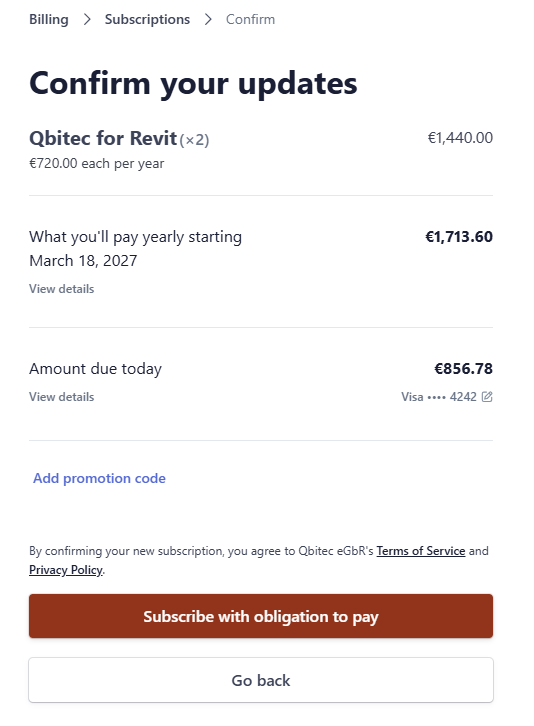
To confirm the changes click the button "Subscribe with obligation to pay" or click "Go back" to make further changes or cancel the process.
Cancelling your subscription
You can issue a cancellation of your subscription by clicking "Cancel subscription" from the portal's main page. Before the cancellation is issued, you can review the effects and the effective date of the cancellation.
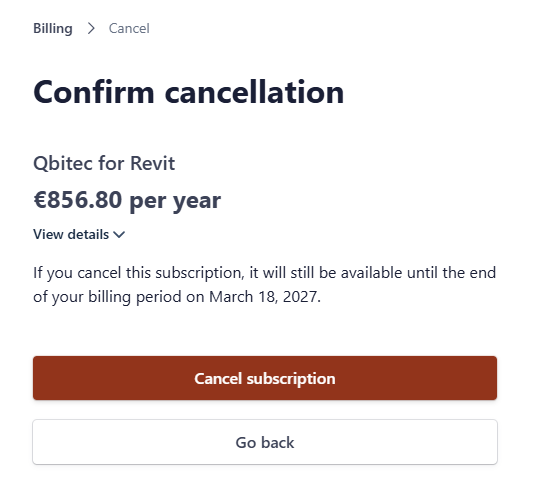
Cancellation takes effect after the current billing cycle, this means monthly subscriptions will be cancelled at the same day and the same time of the next month (exact to the second), and yearly subscriptions will be cancelled at the same day and the same time of the next year.
For example: You started a monthly subscription on January 12 and on September 12 you cancel your subscription. Your license will be valid until includig September 11 and be cancelled at the same time of the day on September 12.
Pressing "Cancel subscription" confirms the cancellation.
Revoking your cancellation
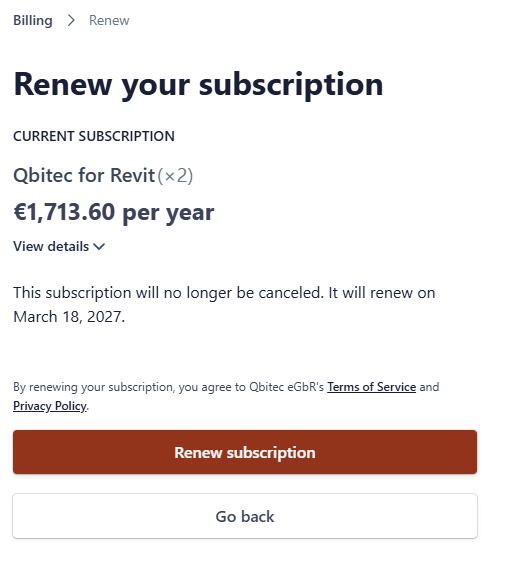
As long as your subscription is still active, you can revoke your cancellation. After your subscription has been cancelled, the "Cancel subscription" button on the portal's main page turns into a new button called "Don't cancel subscription". Clicking this button shows you a summary of the changes and effectively re-activates your subscription. Click "Renew subscription" to confirm.
Please help us make our addin better
We would love to understand better, how we can improve our product and our offer. After pressing "Cancel subscription" you will be asked to give optional feedback.
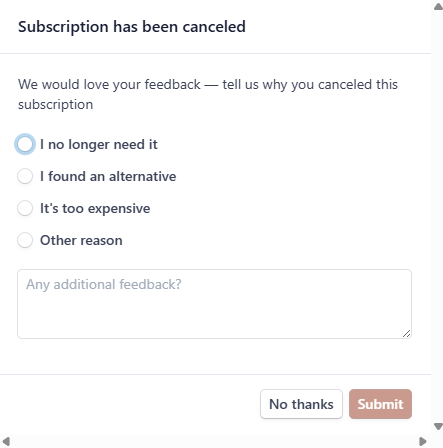
We would truly appreciate you letting us know what your reasons were and how we can improve. Also, feel free to always drop us an email. Thank you!
Invoice history: