
Inserting Point Clouds from a Public URL
The Qbitec plugin support to insert Potree 2 point clouds from a public available URL directly into Revit.
Potree 2 point clouds consist of three files:
- metadata.json
- octree.bin
- hierarchy.bin
To insert such a point cloud into Revit go to the Qbitec Ribbon and click on Insert Point Cloud and then on Public URL.
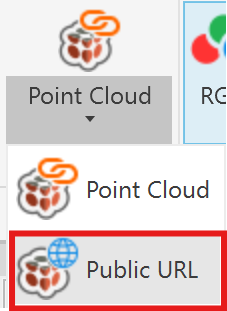
Then enter the URL of the containing path of the three file e.g. https://qbitec.com/pc
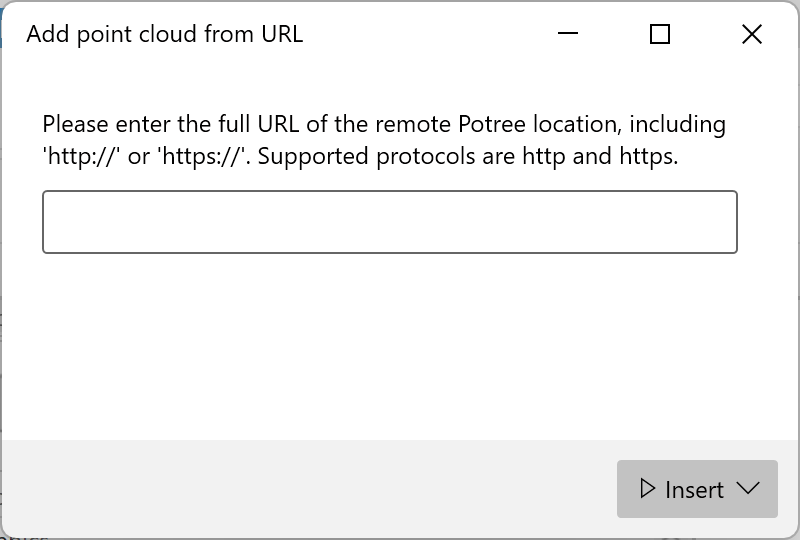
Finally click on the Insert button. You have the same Insertion Modes available as for other point clouds.
Supported Point Cloud Formats
Currently it is not supported to access non-public PoTree URLs which needs some kind of authentication or access token.
The following streaming file formats are currently supported:
- PoTree Version 2.0
- PoTree Version 1.7
- Entwine (experimental)
Panorama Support (for public / self hosted point clouds)
Since version 1.8.6, we also support inserting panoramic images associated with a point cloud.
The panoramic images must be hosted on the web server using the same folder structure and file format produced by our local file converter (version 1.8.6 or later).
All panoramic images are stored as equirectangular images in JPG or PNG format inside a panoramas subfolder of the point cloud folder. Each image has a corresponding JSON file containing relevant metadata, such as the image resolution, position, and orientation.
The panoramas folder must also contain a panoramas.json index file listing the available panoramas.