
Quick Start Guide
Select Revit geometry in the
viewview:(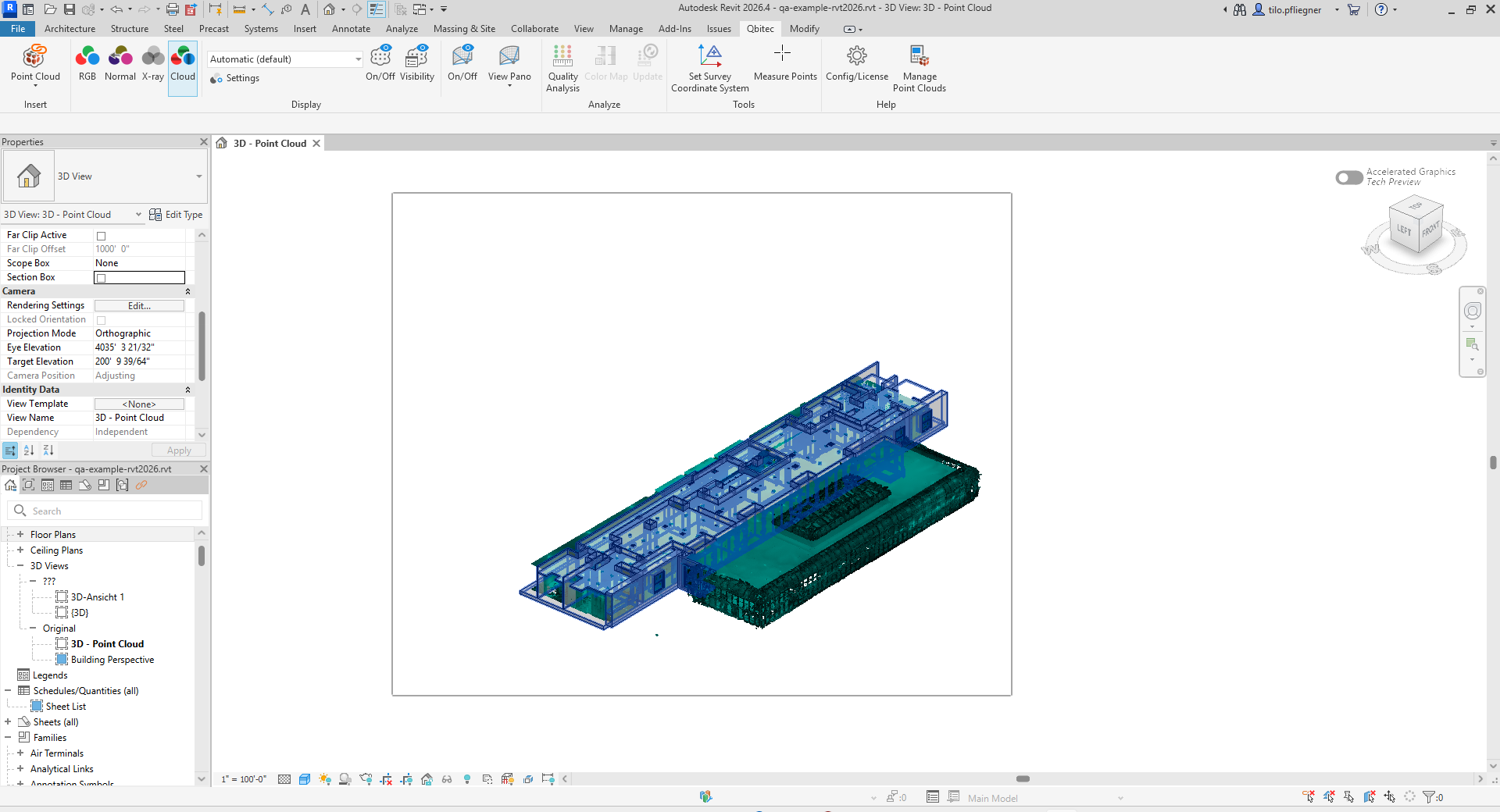
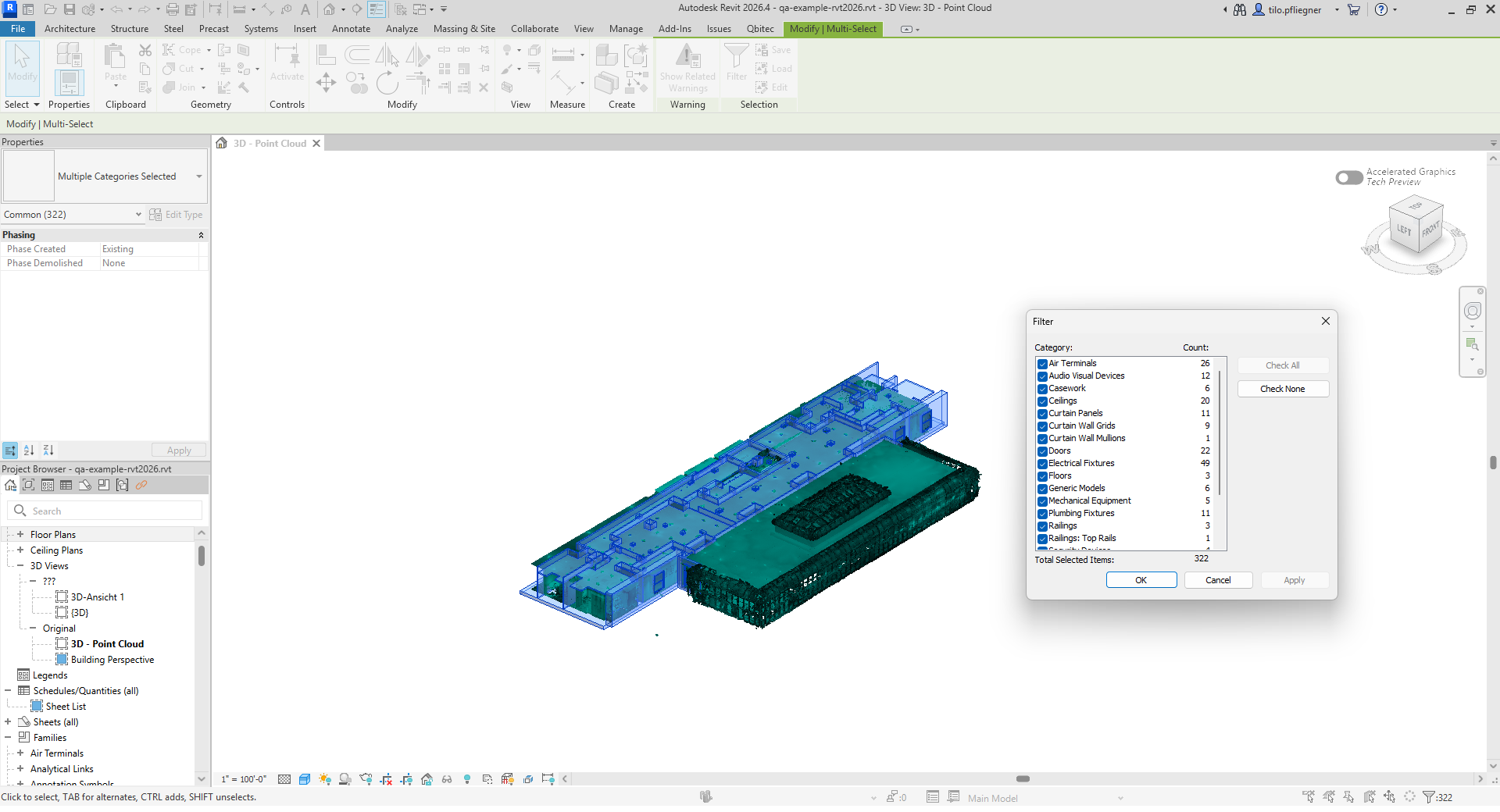
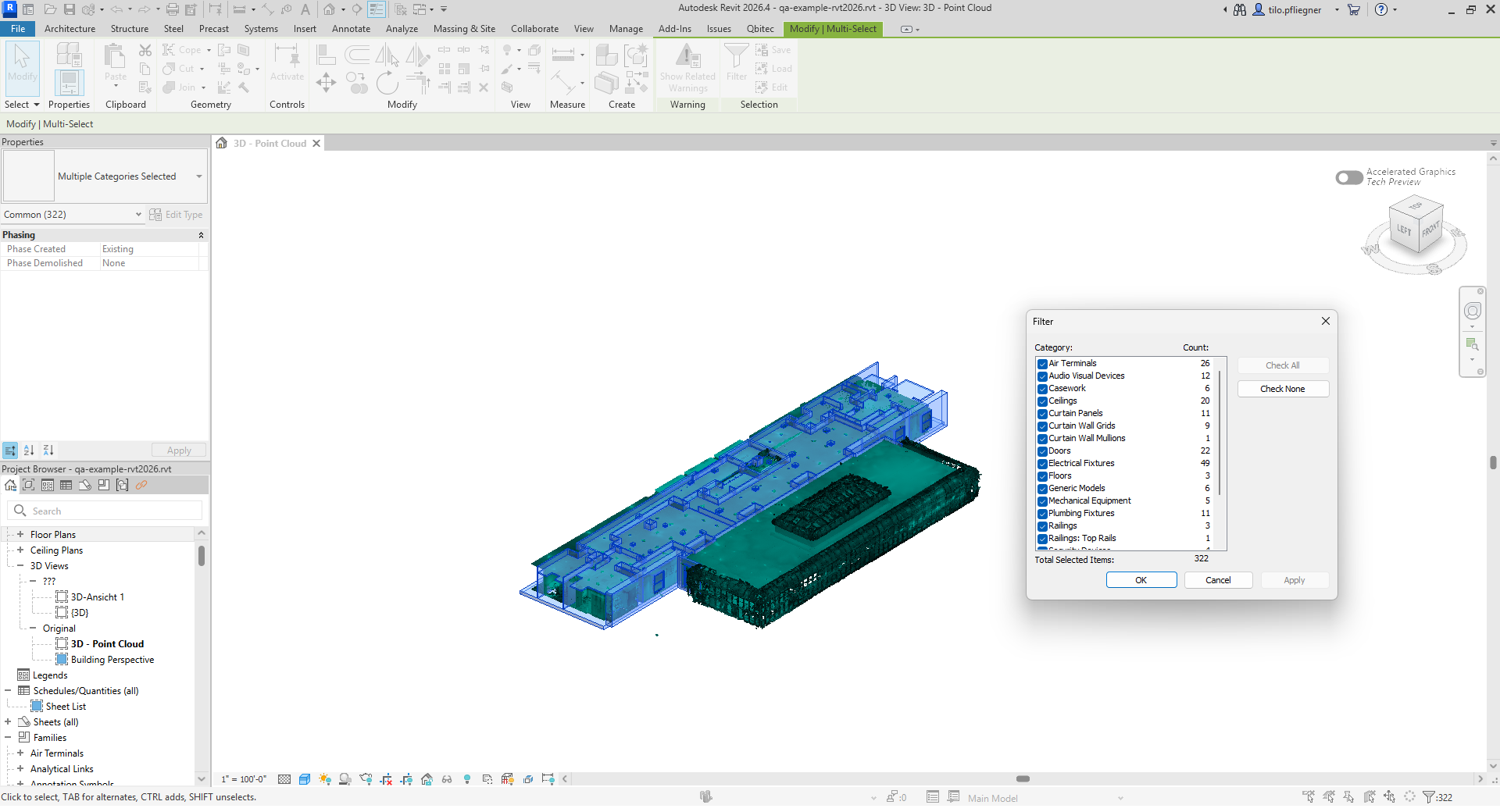
Optionally, use
RevitRevit'sfiltersSelection Filter tonarrowfilterdownforcategories).certain - element types:
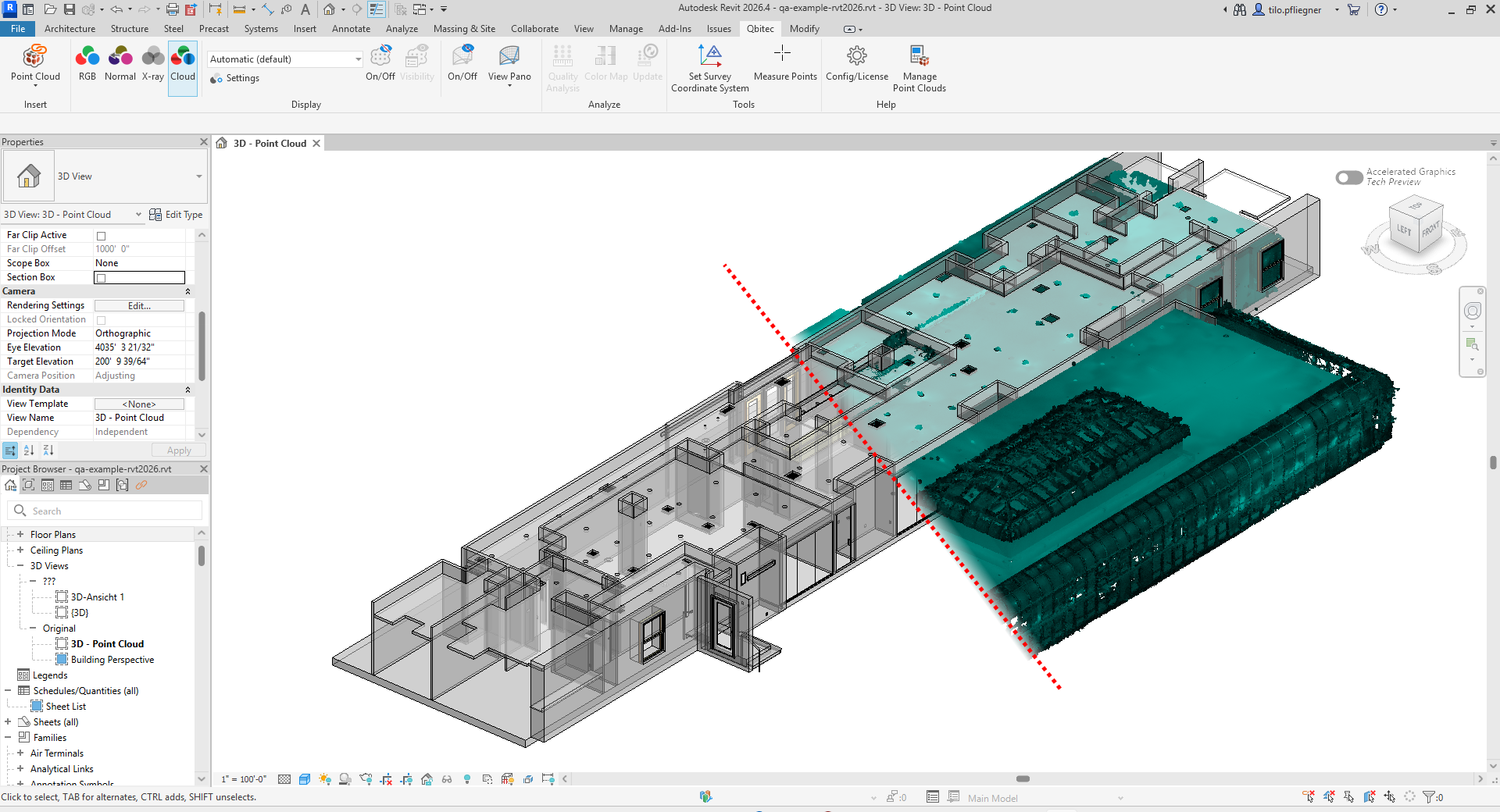
Click the Quality Analysis button.
The selected elements will be processed. Some elements might not be suitable for analysis. This is the case If there are elements that don't provide produce any analyzable geometry - The plugin calculates the shortest distance from every point cloud point to the selected geometry.
- Distances are displayed using the active Color Map.
- Switch or edit color maps via the Color Map command to suit your analysis case.
- If geometry changes or you want to analyze a different selection, pick the new elements and press the Update button to recalculate.
- Toggle the visualization on or off anytime with the Quality Analysis button.
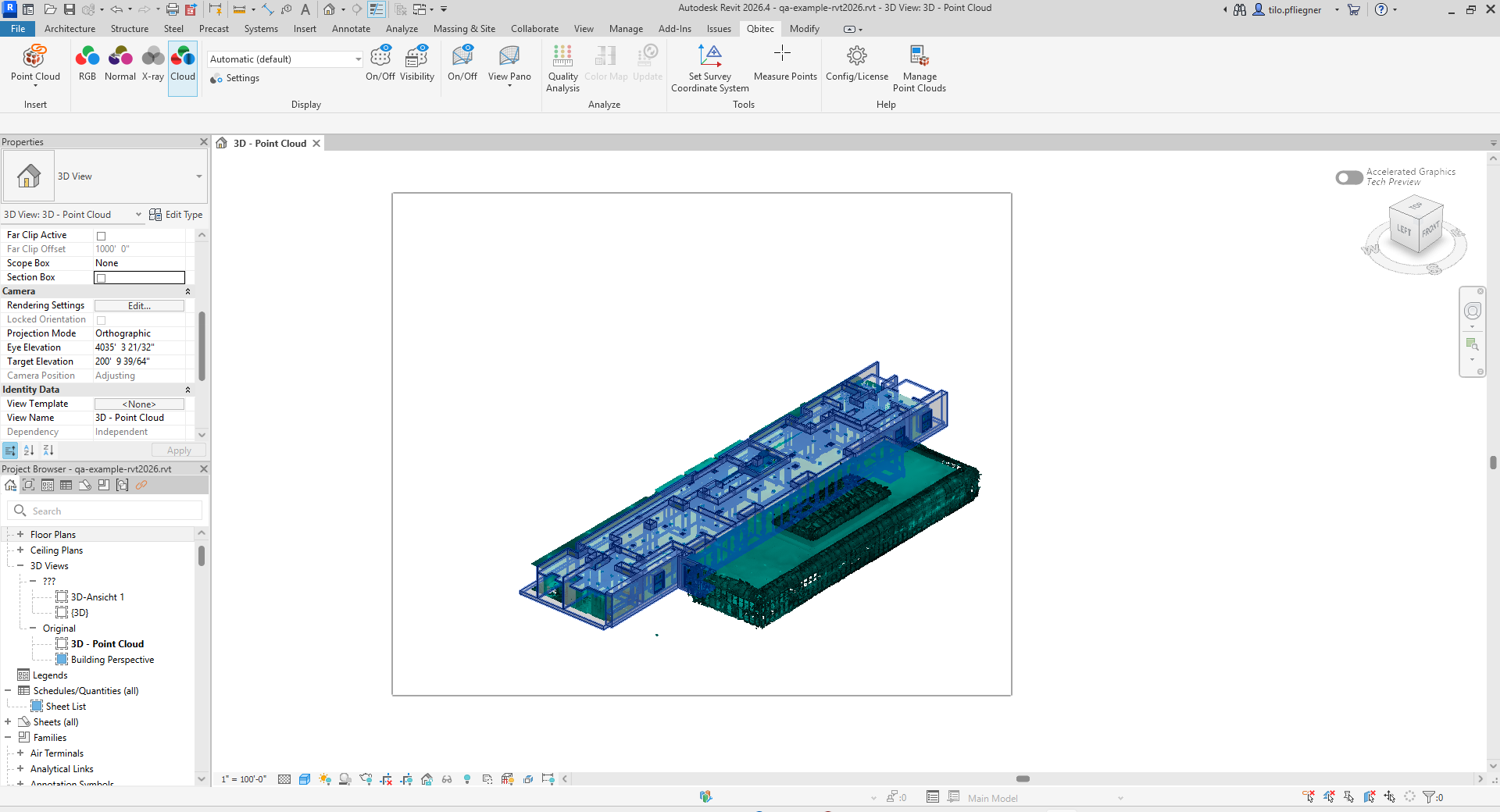
Note: Distances are calculated dynamically. The analysis starts at a coarse level so results become visible quickly, and then refines to deeper levels to reveal finer details. Each point cloud point is mapped to its closest distance from the selected geometry and visualized using the chosen color map.
Note that the calculated distances and geometry used for quality analysis are not saved with the project and will be recalculated when the project is reopened.