
Installing the Qbitec for Revit Plugin
Download and Installation
The installer for the latest version of the Qbitec for Revit plugin can be downloaded from the following location:
Qbitec for Revit Download Area
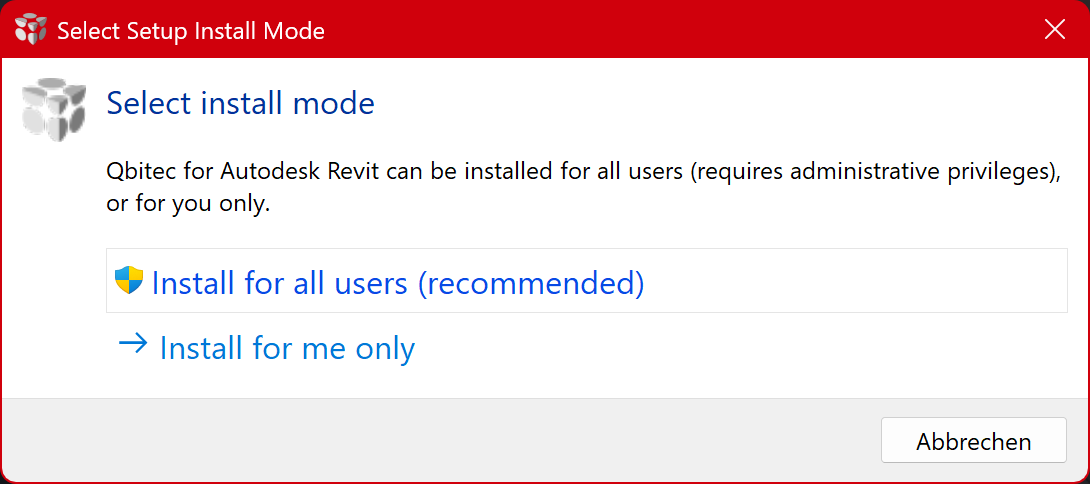
Before launching the installer, make sure all instances of Revit are closed. Then, launch the installer and select whether to install the plugin for the currently logged-in Windows user or for all users on the system.
Installing the plugin for all users requires administrative privileges and is the recommended deployment method.
Installation for the current user only is also supported. This option may be appropriate for evaluation or testing scenarios, where the software is intended for use by a single user without affecting other user accounts on the machine.
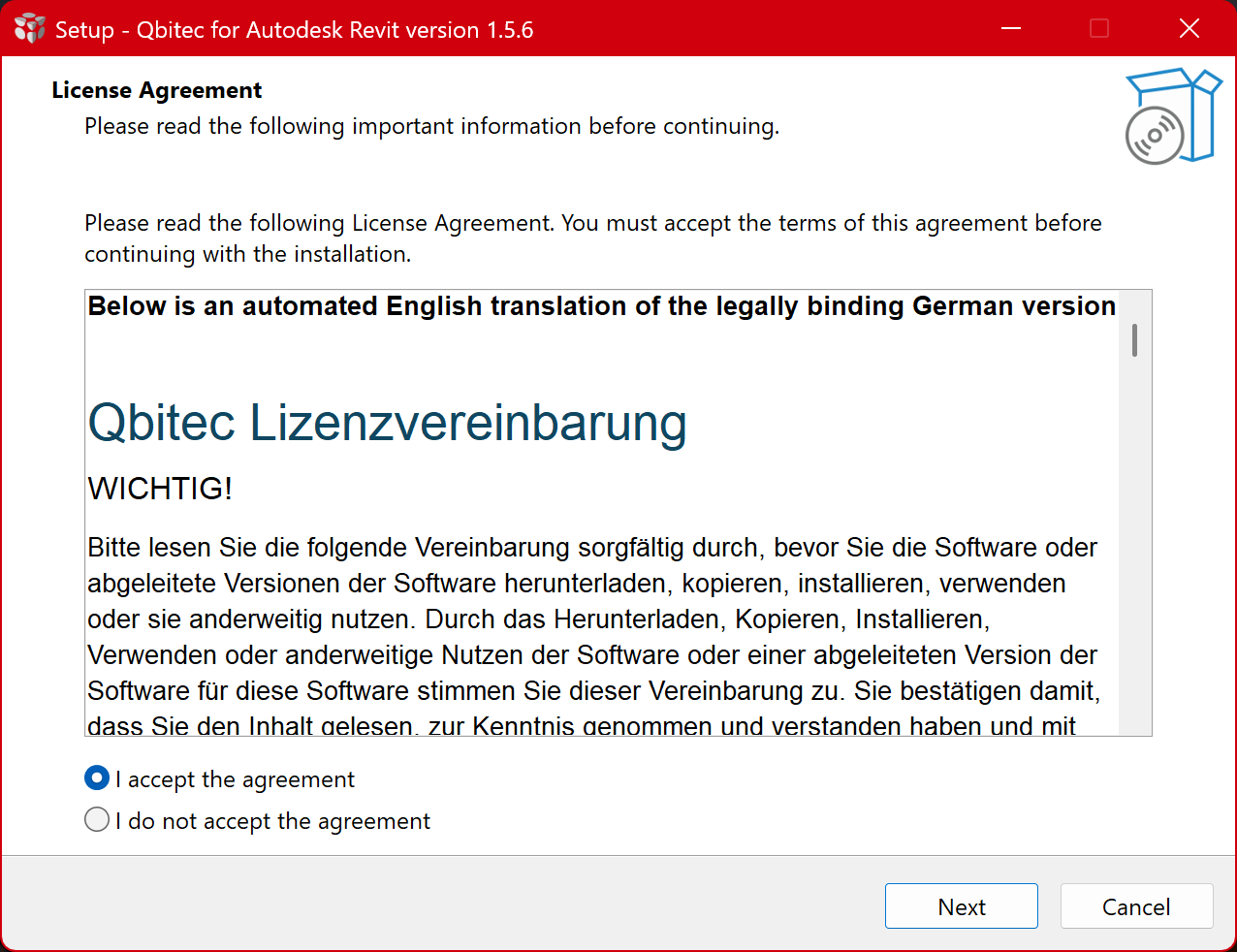
On the next page you have to accept our license agreement to proceed:
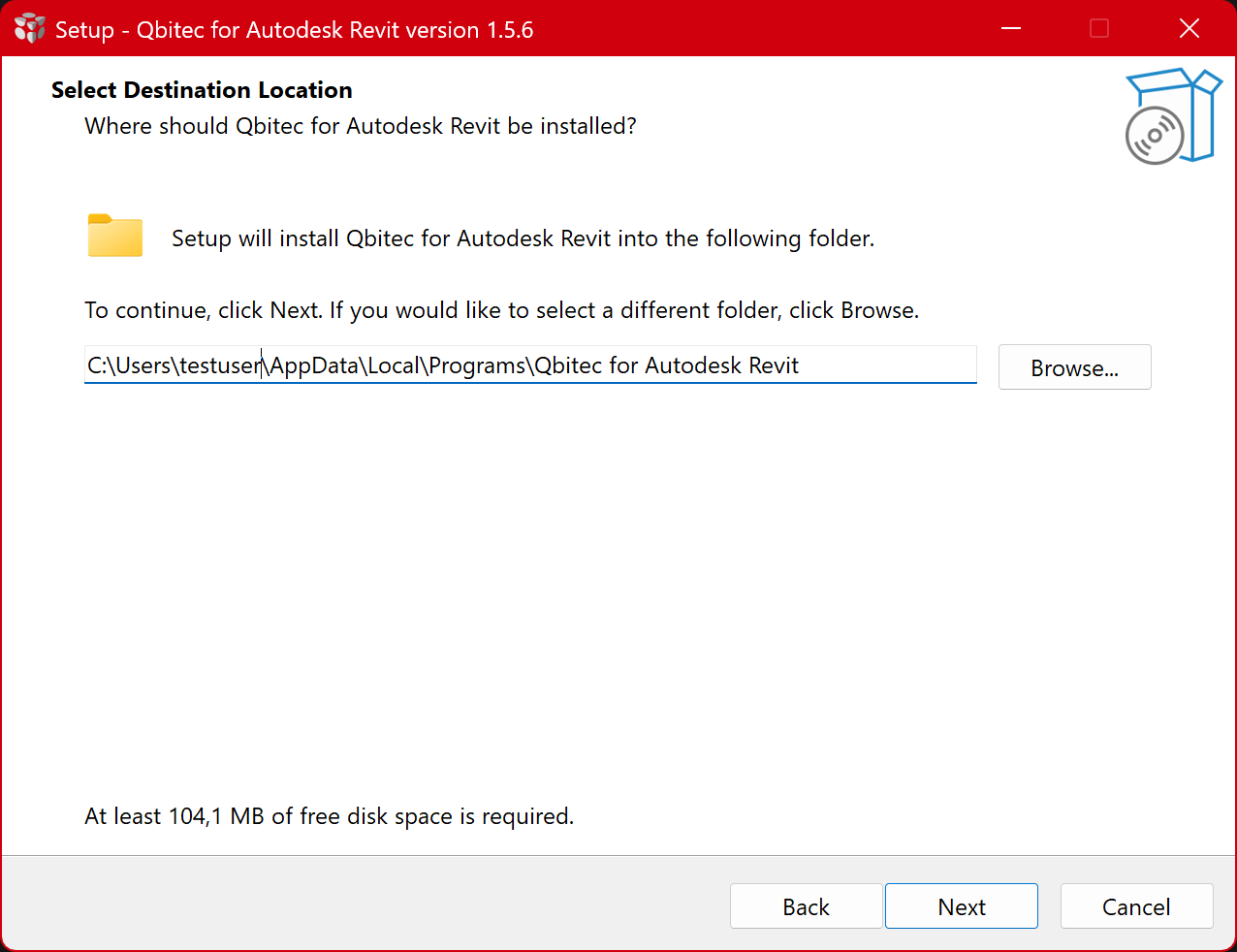
Next, you must select the installation directory for the plugin. In most cases, the automatically suggested path is appropriate and should be used.
The suggested installation path depends on the installation mode previously selected (current user or all users).
If the plugin is already installed, this step will be skipped and the plugin will be updated or reinstalled in the same directory as the existing installation.
If you do not want this behavior, please uninstall the plugin first before installing it again.
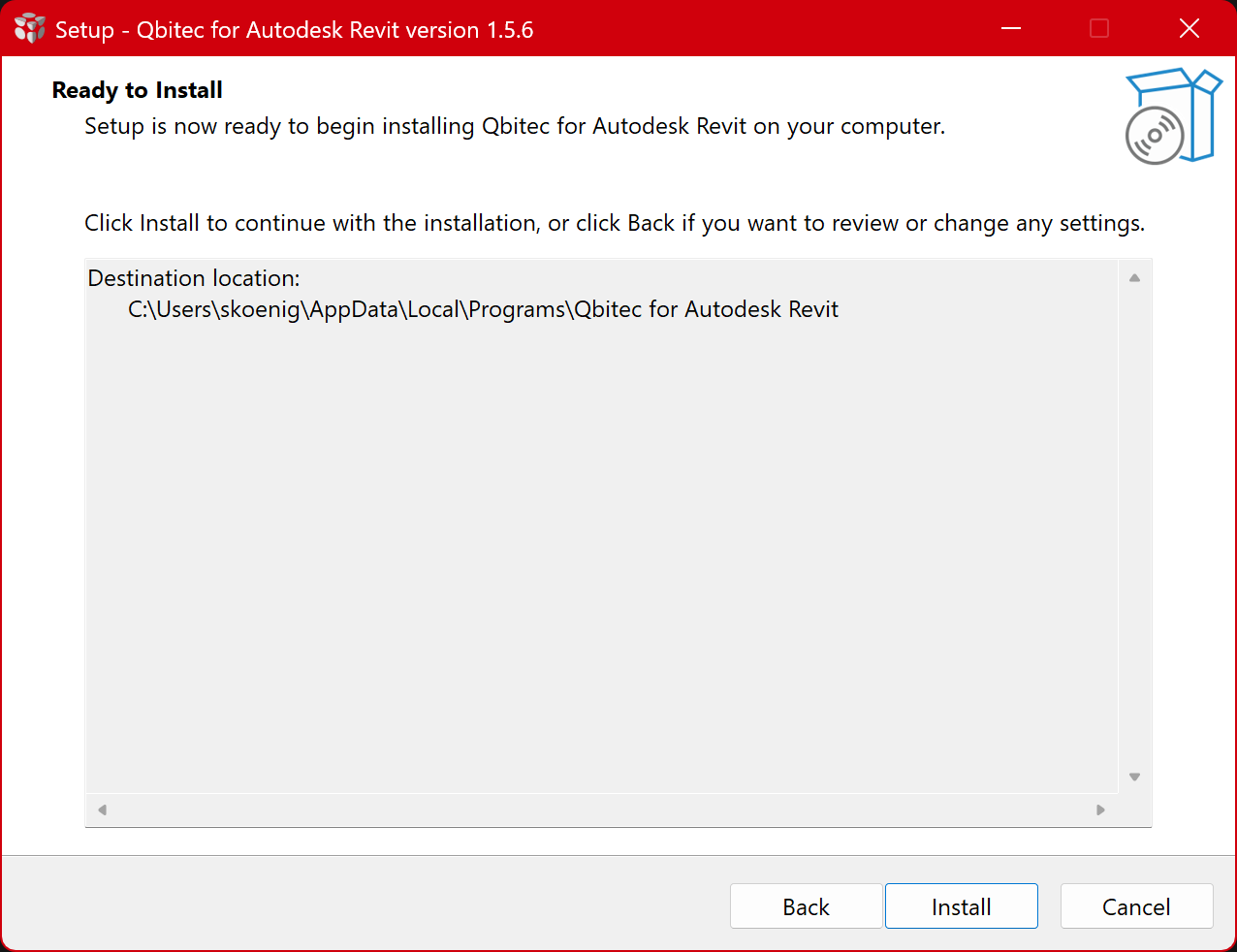
Now you have provided all information for the setup, click the Install button to continue:
Wait for the installation to complete and click on the Finish button:
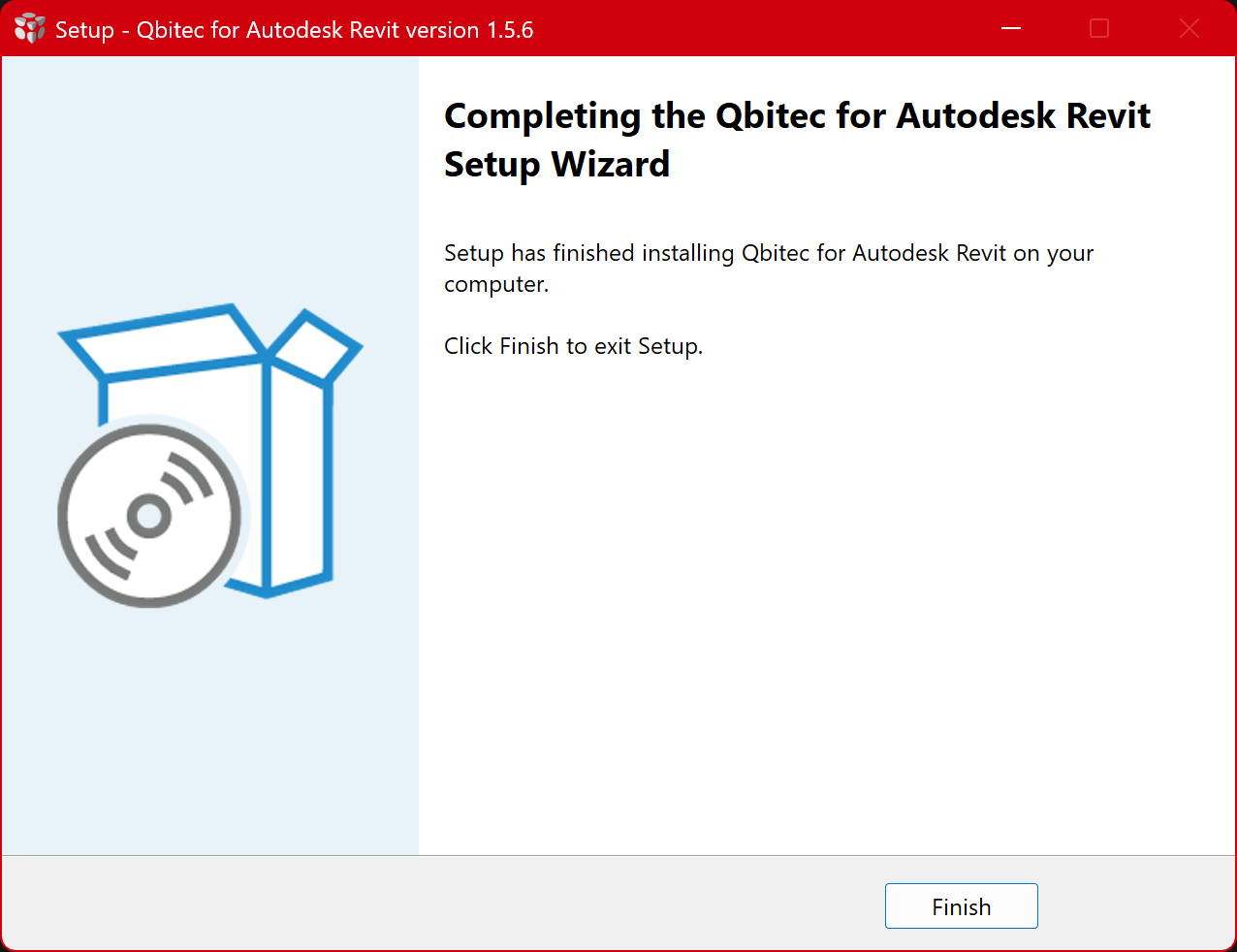
You can now launch Revit and use the plugin.