
Download and Install
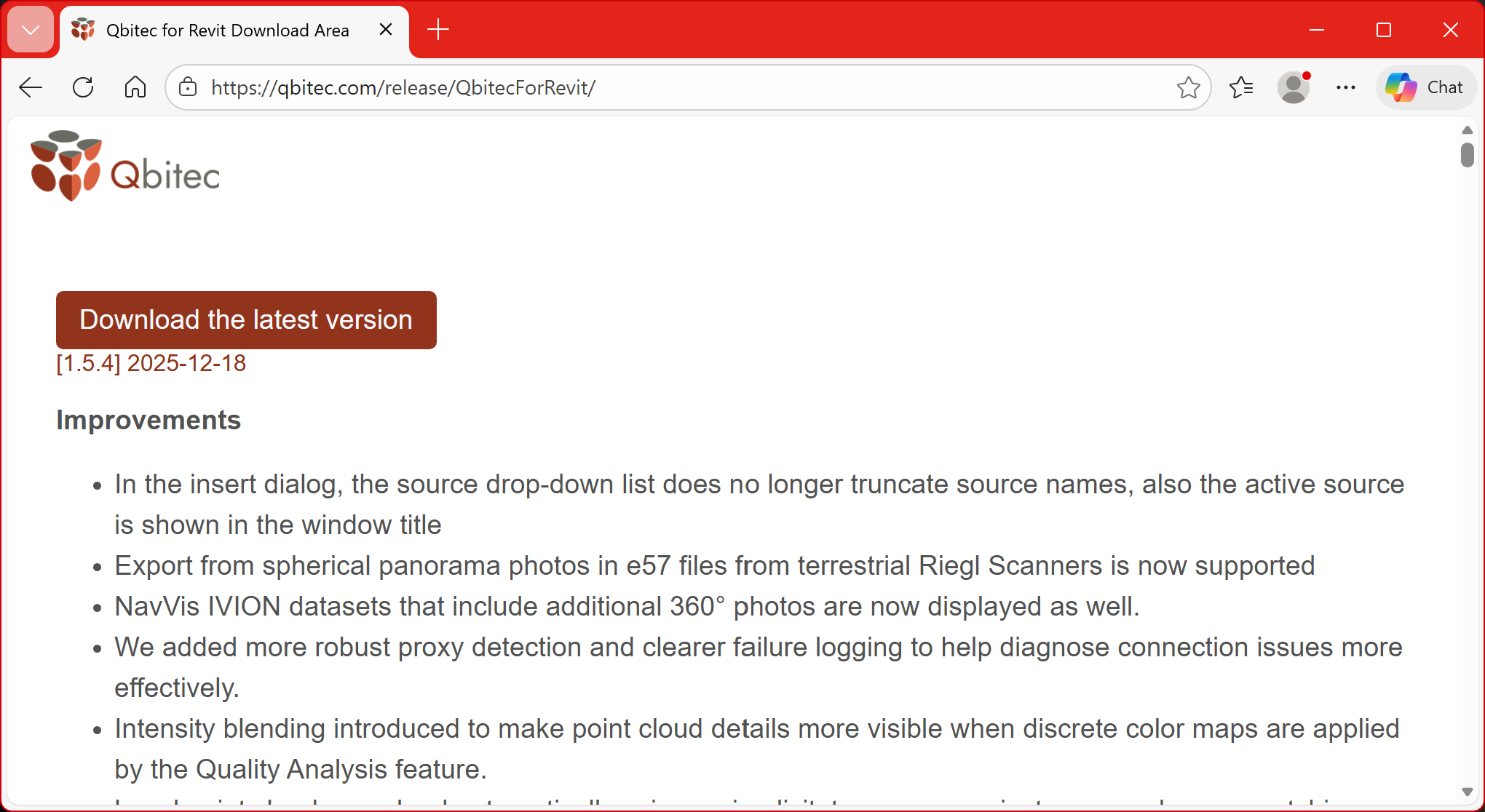
The installer for the newest version of the Qbitec for Revit plugin can be downloaded from here: Qbitec for Revit Download Area
Click on the red button to start the download.
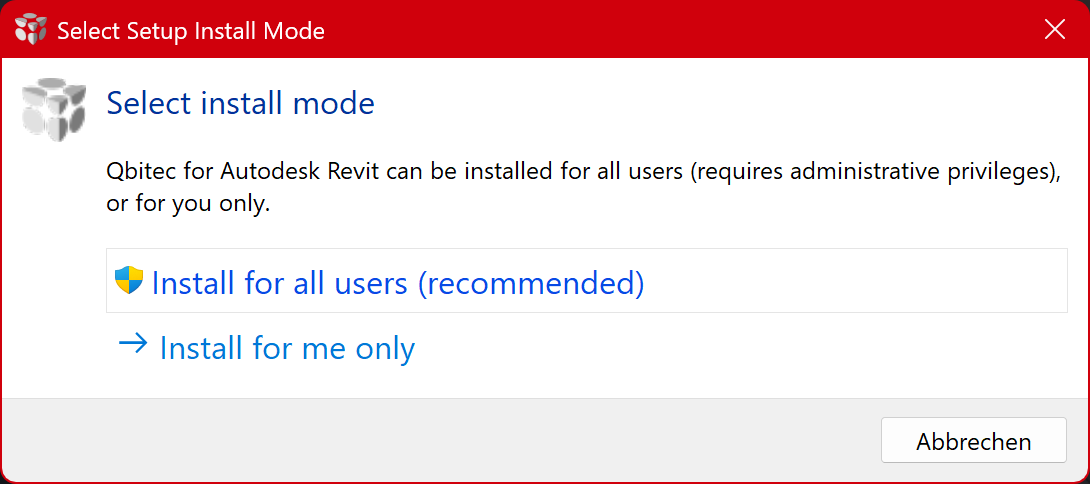
After starting the installer you have to decide if you want to install the plugin only for the currently logged-in Windows user or for all users on the PC. Installing for all users requires administrative privileges and is the recommended way. However, it is also possible to install the plugin only for the current user, which might come handy e.g. if you just want to test the plugin for yourself.
Advanced Topics
Installing the point cloud converter as a stand alone tool
- Download the installer executable as described above
- Open a powershell terminal
- Change into the path where you have downloaded the installer
- Run the installer exe with the following command line argument (Hint: The version number in the executable name of the install might be different and needs to be adjusted to the downloaded version)
-
.\qbitecSetup-1.5.5.exe /ConverterOnly
Firewall / Proxy Configuration
Our plugin uses the LicenseSpring Service for license checks. Please ensure that communication to the RestAPI of license spring under https://api.licensespring.com/ is not blocked by your firewall and/or proxy server configuration.
You can try open the following endpoint via curl or inside a web browser to see if your request will be blocked https://api.licensespring.com/api/v4/check_license
If the server responds with a JSON object the communication works properly.
Further if you want to connect to a NavVis instance to stream point clouds directly into Revit, our plugin needs to communicate to the RestAPI of your NavVis Ivion Instance. Please verify first if you can access the NavVis Ivion instance within a web browser. If this is not working, please contact NavVis support.
If you are using a proxy server, our plugin tries to figure out the proxy server settings automatically from your Windows settings. If this does not working correctly, you can specify the proxy server manually by setting the following registry key(s):
Silent Installation (without GUI)
Sometimes Administrator wants to install a software via a script without GUI interactions e.g. from an install script to roll out installations automatically on multiple PCs.
We support such an installation by using the /VERYSILENT option.
To install the plugin for all users (from a privileged powershell) call:
.\qbitecSetup-1.5.5.exe /ALLUSERS /VERYSILENT
To install the plugin only for the current user (normal powershell) call:
.\qbitecSetup-1.5.5.exe /CURRENTUSER /VERYSILENT