
Download and Install
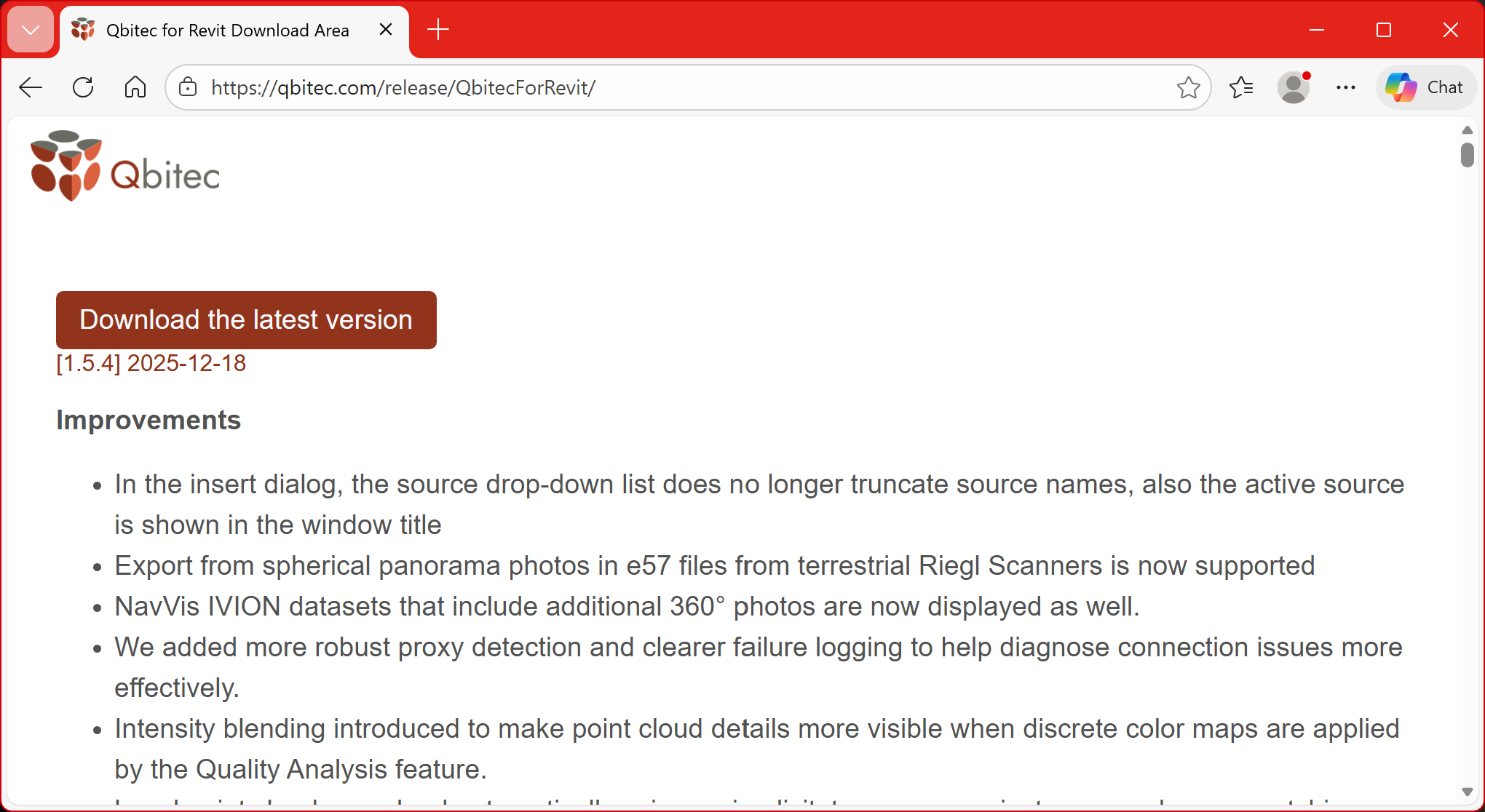
The installer for the newest version of the Qbitec for Revit plugin can be downloaded from here: Qbitec for Revit Download Area
Click on the red button to start the download.
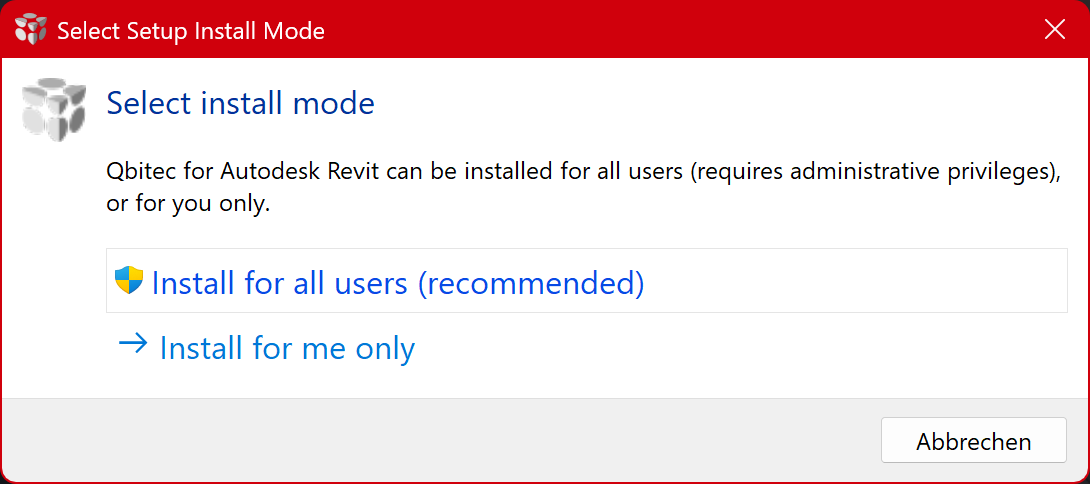
After starting the installer you have to decide if you want to install the plugin only for the currently logged-in Windows user or for all users on the PC. Installing for all users requires administrative privileges and is the recommended way. However, it is also possible to install the plugin only for the current user, which might come handy e.g. if you just want to test the plugin for yourself.
Advanced Topics
Installing the point cloud converter as a stand alone tool
-
Download the latest installer executable
asfromdescribedhere:abovehttps://qbitec.com/release/QbitecForRevit/ -
Open a
(Run as Administrator if required by your system policy).powershellPowerShell terminal ChangeintoNavigate to the
pathdirectorywherecontainingyou havethe downloaded installer:cd "C:\Path\To\Your\DownloadFolder"- Execute the installer
Run the installer exewith the followingcommandcommand-lineargumentparameter
(replace(Hint:<version>Thewith the actual version numberinof theexecutabledownloadednamefile):.\qbitecSetup-<version>.exe /ConverterOnly- Follow the instructions of the
installinstallermight be different and needswizard tobe adjusted tocomplete thedownloaded version)installation. .\qbitecSetup-1.5.5.exe /ConverterOnly
Firewall / Proxy Configuration
Our plugin uses the LicenseSpring Serviceservice forto licensevalidate checks.licenses. Please ensure that communication towith the RestAPILicenseSpring ofREST licenseAPI spring underat https://api.licensespring.com/com is not blocked by your firewall and/orand is correctly routed through your proxy server configuration.
YouIn can try open the following endpoint via curl or inside a web browser to see if your request will be blocked https://api.licensespring.com/api/v4/check_licenseIf the server responds with a JSON object the communication works properly.Furtheraddition, if you want to connect to a NavVis instancesource to stream point clouds and panoramic images directly into Revit, ourthe plugin needsmust be able to communicate towith the RestAPINavVis Ivion Rest API of your Ivion instance(s).
Please first verify that you can access your NavVis Ivion Instance.instance Pleasein verifya firstweb ifbrowser from the same machine and using the same Windows user account. If you canexperience accessany issues accessing the web interface, contact the NavVis Ivionsupport instanceteam withinfor aassistance.
If you are using a proxy server, ourthe plugin triesattempts to figureautomatically outdetect the proxy server settings automatically from your Windows settings.configuration. If this does not workingwork correctly, you can manually specify the proxy server manuallyaddress by setting the following registry key(s):key to the proxy URI to use:
HKEY_CURRENT_USER\Software\Qbitec\QbitecForRevit\Settings\ProxyUri

Silent Installation (without GUI)
SometimesIn Administratorsome wantsenvironments, administrators need to install a software via a scriptscripts without GUIany interactionsgraphical e.g.user frominterface an(GUI), installfor scriptexample towhen rolldeploying outthe installationsapplication automatically onto multiple PCs.
WeThe supportinstaller suchsupports ansilent installation by using the /VERYSILENT command-line option.
Silent installation for all users (requires elevated privileges)
- Download the latest installer executable from here: https://qbitec.com/release/QbitecForRevit/
-
Open a PowerShell terminal with Administrator privileges.
-
Navigate to the directory containing the installer.
cd "C:\Path\To\Your\DownloadFolder" -
Execute the following command
(replace<version>with the actual version number of the downloaded file):.\qbitecSetup-<version>.exe /ALLUSERS /VERYSILENToption.
ToThis installinstalls the plugin for all users (on the system without showing any installer dialogs.
Silent installation for the current user only
- Download the latest installer executable from here: https://qbitec.com/release/QbitecForRevit/
-
Open a
privilegednormalpowershell)(non-elevated)call:PowerShell terminal. -
Navigate to the directory containing the installer.
cd "C:\Path\To\Your\DownloadFolder" -
Execute the following command
(replace<version>with the actual version number of the downloaded file):.\qbitecSetup-1.5.5.<version>.exe /ALLUSERSCURRENTUSER /VERYSILENT
ToThis installinstalls the plugin only for the currentcurrently logged-in user (normalwithout powershell)any call:GUI
.\qbitecSetup-1.5.5.exe /CURRENTUSER /VERYSILENTinteraction.