
License Activation and Deactivation
Prequisites
Before you can activate the Qbitec for Revit plugin on your PC, you need valid license user credentials consisting of a username (email address) and a password. Please also check your spam folder if you have not received your login details.
For a trial license, the credentials will be sent directly to the email address you provided after requesting the trial on the website.
For a purchased version or a a team trial, the initial login credentials for each created user are managed by the license manager of the plugin. Through the web interface, the license manager can view the initial password as long as it has not yet been changed. If a user forgets their password, the license manager can reset it there.
More details about the license user management can be found at: License Management
If you still encounter problems, please contact Qbitec support at: support@qbitec.com
License Activation
When using the plugin for the first time on a PC after installation, a warning triangle on the Config/License button in the Qbitec ribbon indicates that you need to activate your license before the plugin can be used.

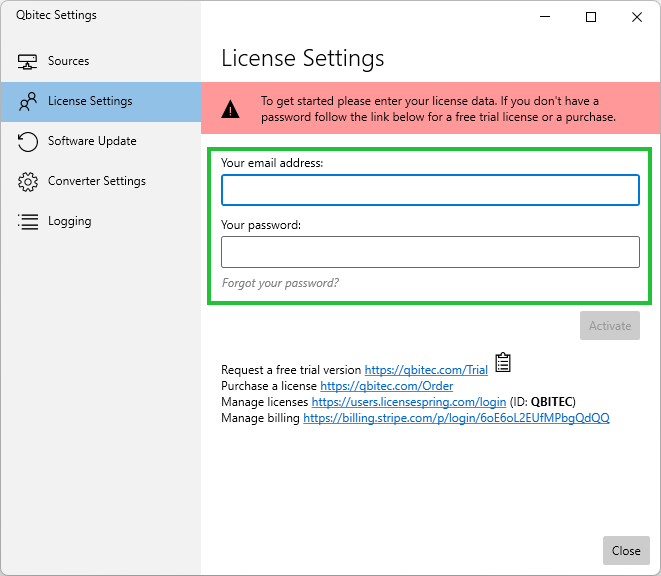
Click the Config/License button to open the Qbitec Settings dialog. Enter your user email and the corresponding password in the designated fields, then click the Activate button.
Common Errors
- incorrect login / password
- No internet
- Already in use on a different machine
Transferring a License to another PC
Once a license has been activated for a user on a workstation, it is bound to that machine. To transfer the license to a different workstation, it must first be deactivated on the original machine before it can be activated on the new one.
To do this, open the License Settings in the Qbitec Settings dialog. The currently active license will be displayed there. To deactivate it, simply click the Deactivate button.