
Adding a Point Cloud to a Local Data Source
Point clouds and panoramas can exist in a wide variety of formats. However, most of these formats are optimized for data exchange rather than for efficient processing and visualization.
To add point clouds with its associated panoramas to a local data source they neneed toedto be converted into the Qbitec format.
The following wide range of input file formats are supported:
Supported File Formats
| Format | Point Coud | Panoramic Images |
| E57 | yes | from spherical images and from structured scans |
| Las/Laz | yes | does not contain panoramic images |
| Recap® RCP/RCS | yes | (from structured scans) |
| Zoller + Fröhlich ZFS | yes | no |
| Riegl RSP | yes | no |
| Riegl RPP | yes | no |
Workflow
To add / convert a new point cloud into a local data source first open the Insert Point Cloud dialog by clicking on the Insert Point Cloud button in the Qbitec ribbon:
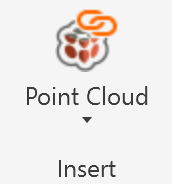
Select the local data source you want to add the point cloud to in the top left combo box:
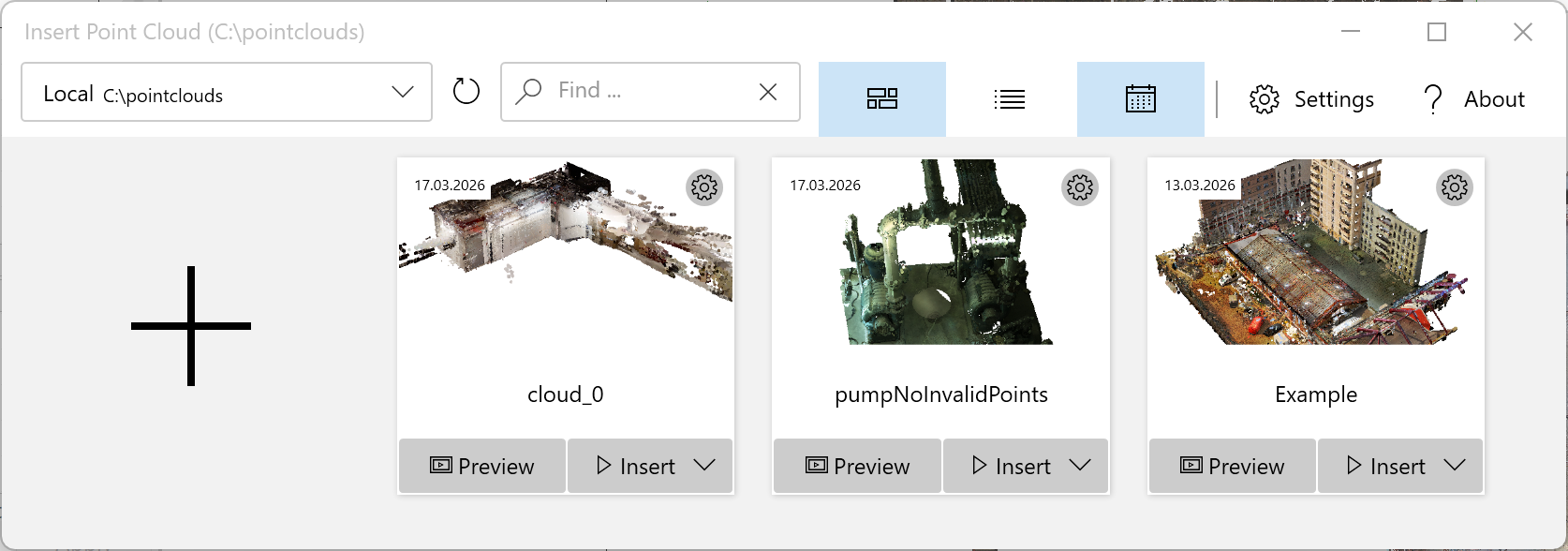
Click on the large '+' Symbol to open the Add a new Point Cloud Wizard.
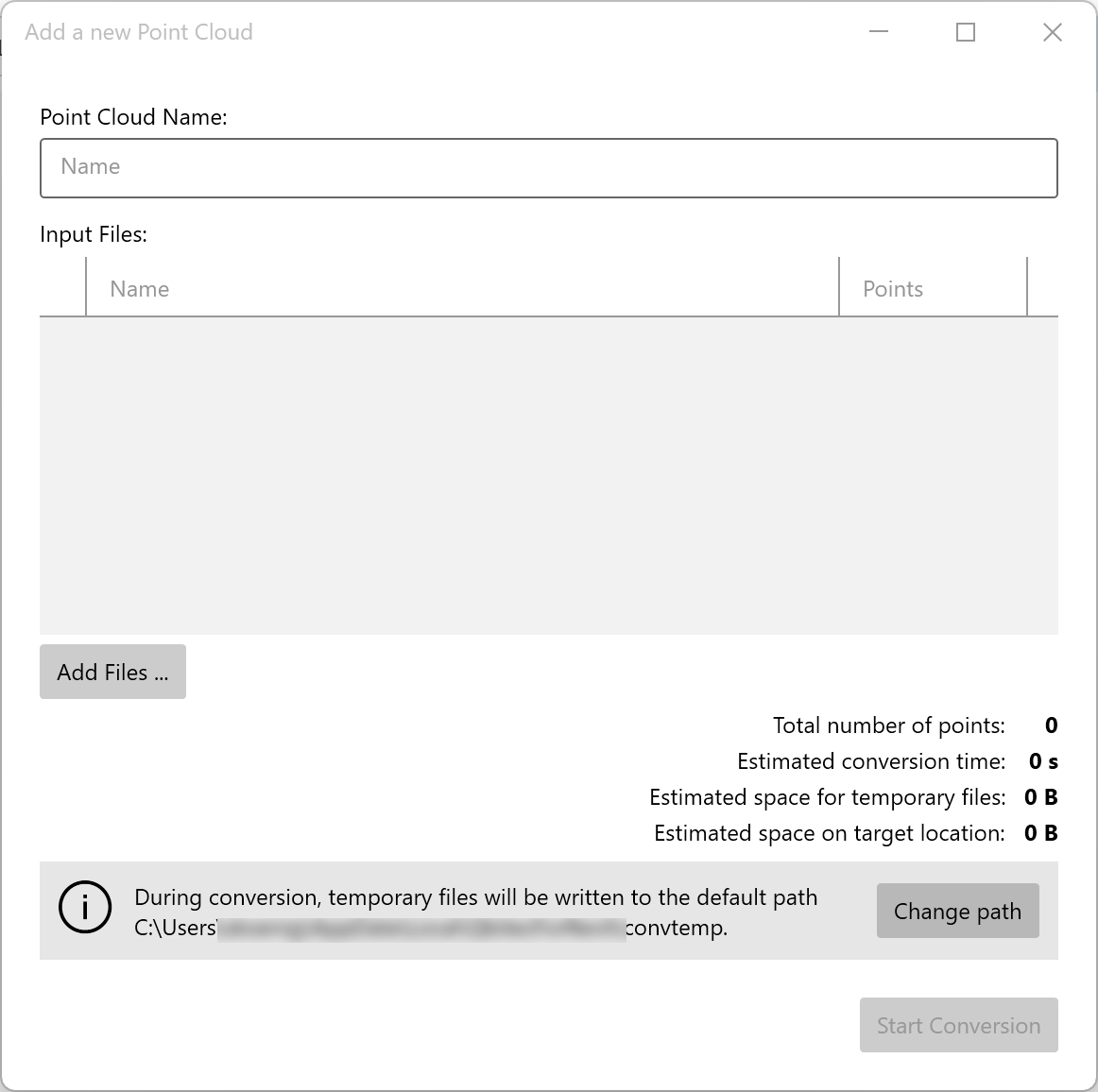
Then add one or more input point cloud files to convert into a single Qbitec point cloud. You
Adding Files:
- Click Add files... to open a file browser
- Select one or more point cloud files (e57, rcp, or other supported formats)
- Repeat to add additional files
- As files are added, the total point count and conversion estimates update automatically
Note: All selected source files will be merged into a single point cloud, which is preferable as it can yield better performance. To create multiple separate point clouds, convert files individually. Only merge multiple point clouds which are registered to the same reference coordinate system.
Conversion Settings:
- A temporary path for file conversion is automatically set
- Click Change path to change the location if needed
- Ensure sufficient free disk space is available for temporary files (they are removed after conversion)
Click Start Conversion to begin processing the files. The conversion runs independently of Revit, allowing you to continue working. You'll receive a notification when conversion is complete.