
Data Sources
Before inserting your first point cloud into an Autodesk Revit document using the Qbitec Revit Plugin, you must first configure a data source.
A data source can be a local folder or a network drive path that contains the point clouds to be inserted. Alternatively, it may be a remote source such as NavVis IVION.
If no data source has been configured yet and you click the Insert Point Cloud button in the Qbitec Ribbon, the Insert Point Cloud window will notify you that a new source must be created before a point cloud can be inserted.
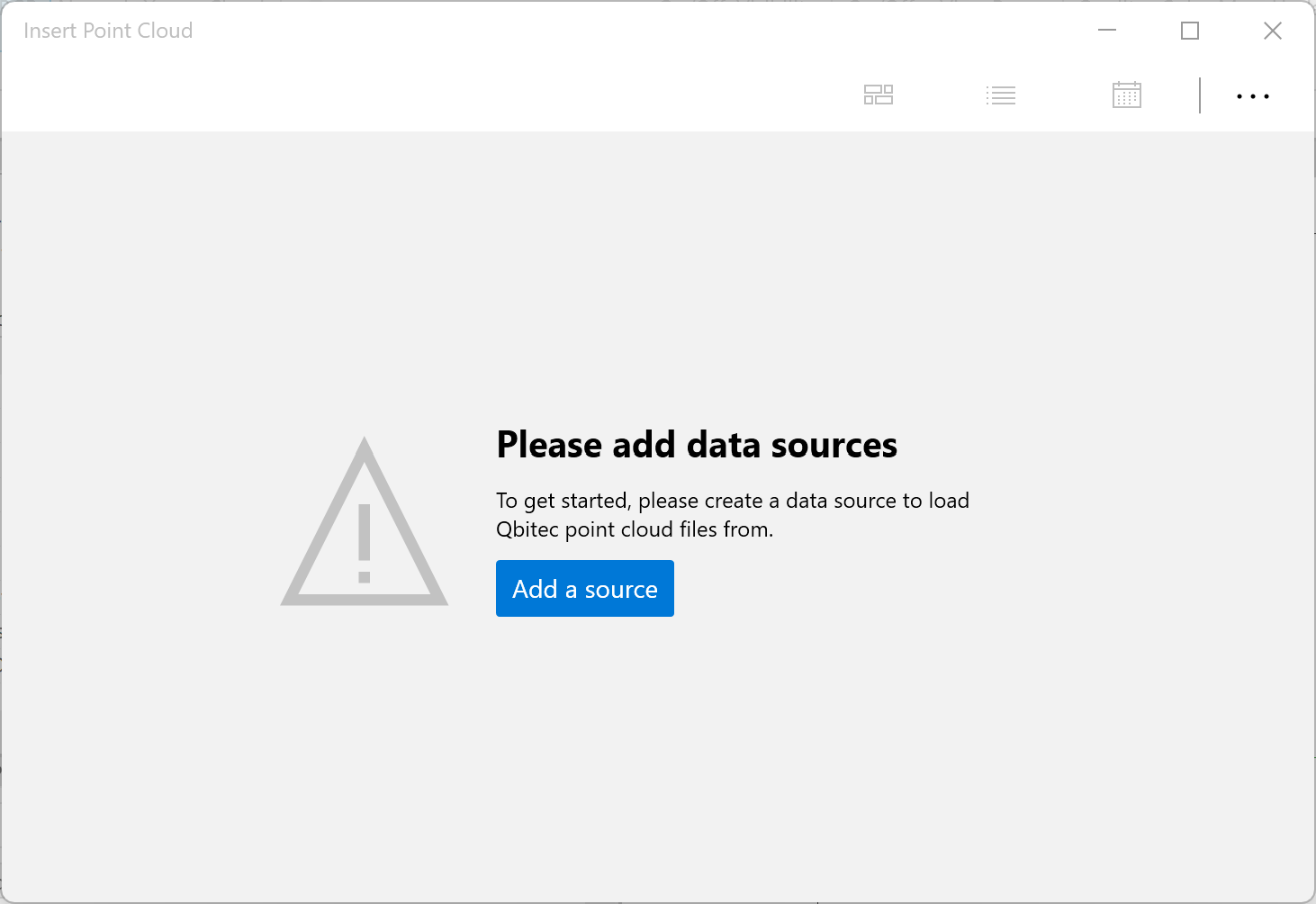
Click on the Add a source button to configure your first data source.
If data sources already exist and an additional one needs to be added, open the Qbitec Settings dialog via the Config/License button in the Qbitec Revit Plugin ribbon in Autodesk Revit.
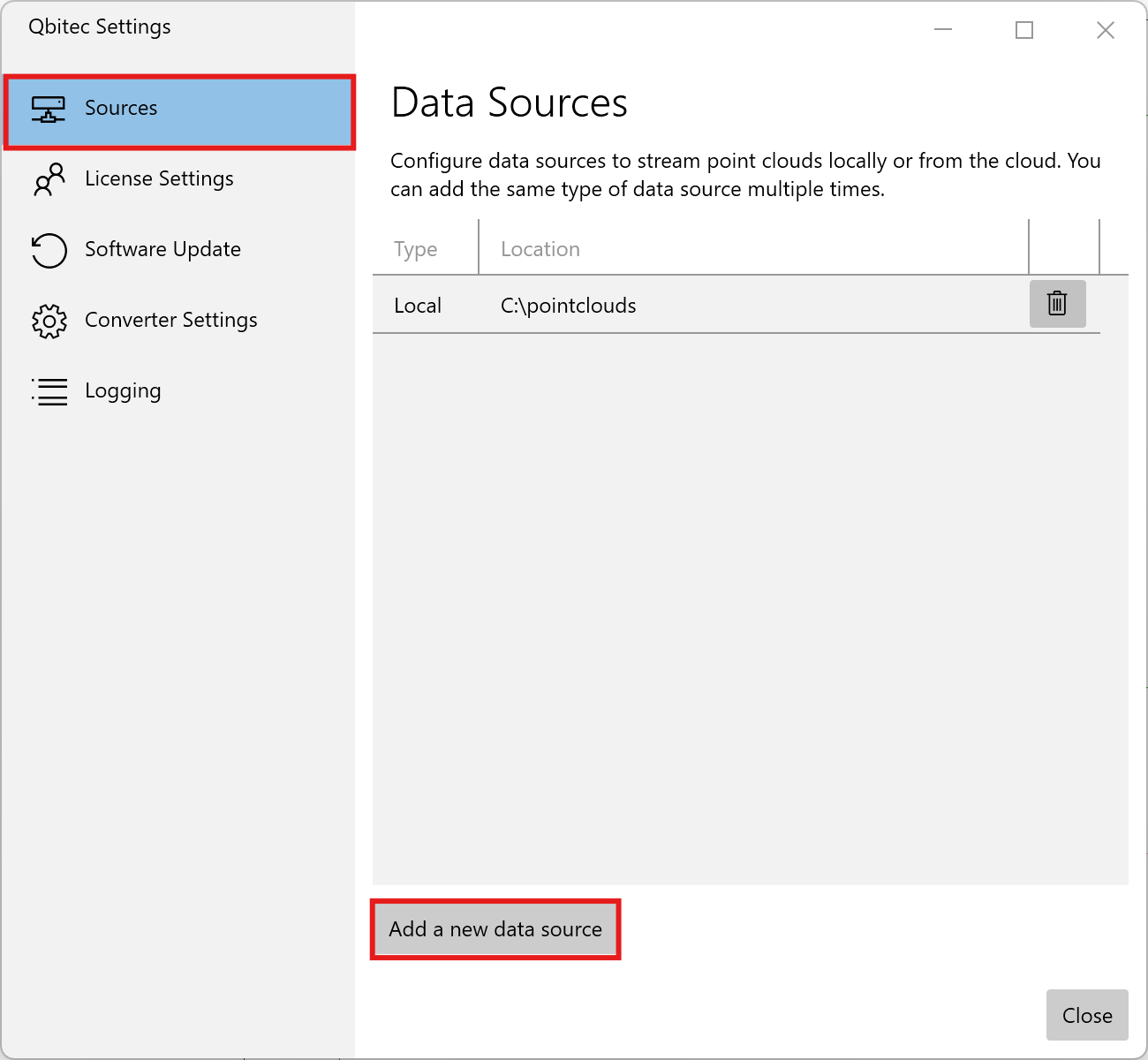
Then select Sources on the left side and click Add a new data source to start the wizard for creating a new data source.
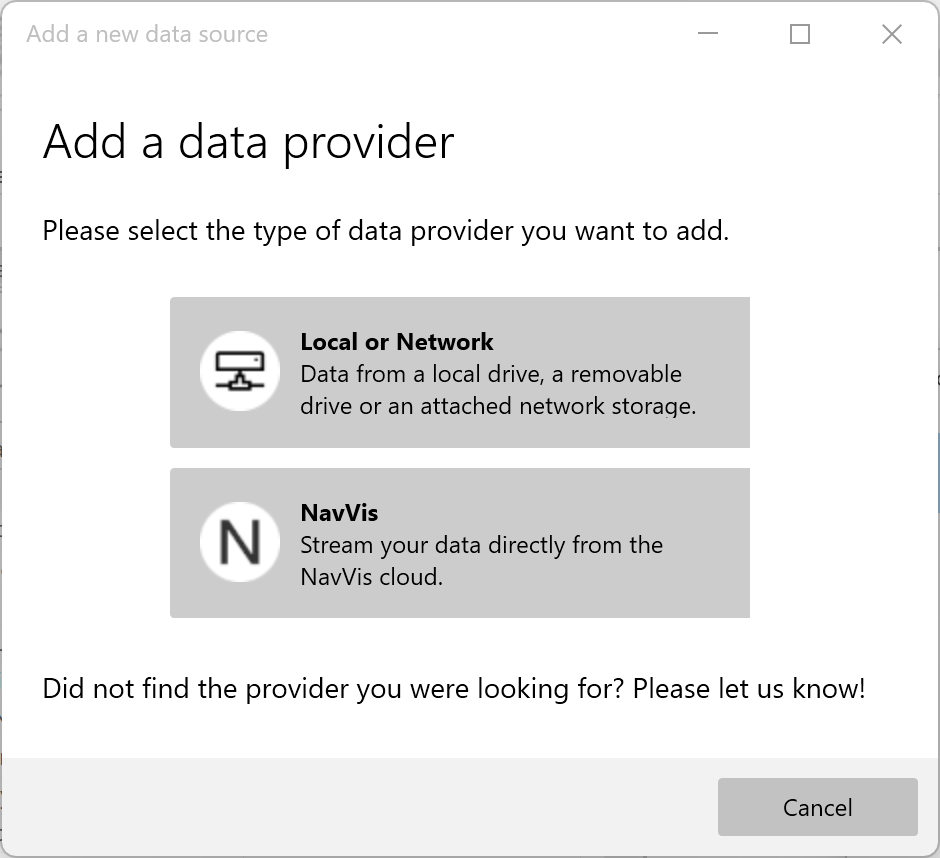
First you need to select the type of data provider which can be either Local or Network or a NavVis IVION instance.
Local or Network Sources
If you plan to store your point clouds in a folder on a local hard drive, an external USB drive, or a network drive path, you need to configure a local data source.
You can either select a folder that already contains Qbitec point clouds, or choose a new folder where Qbitec point clouds will be stored in the future.
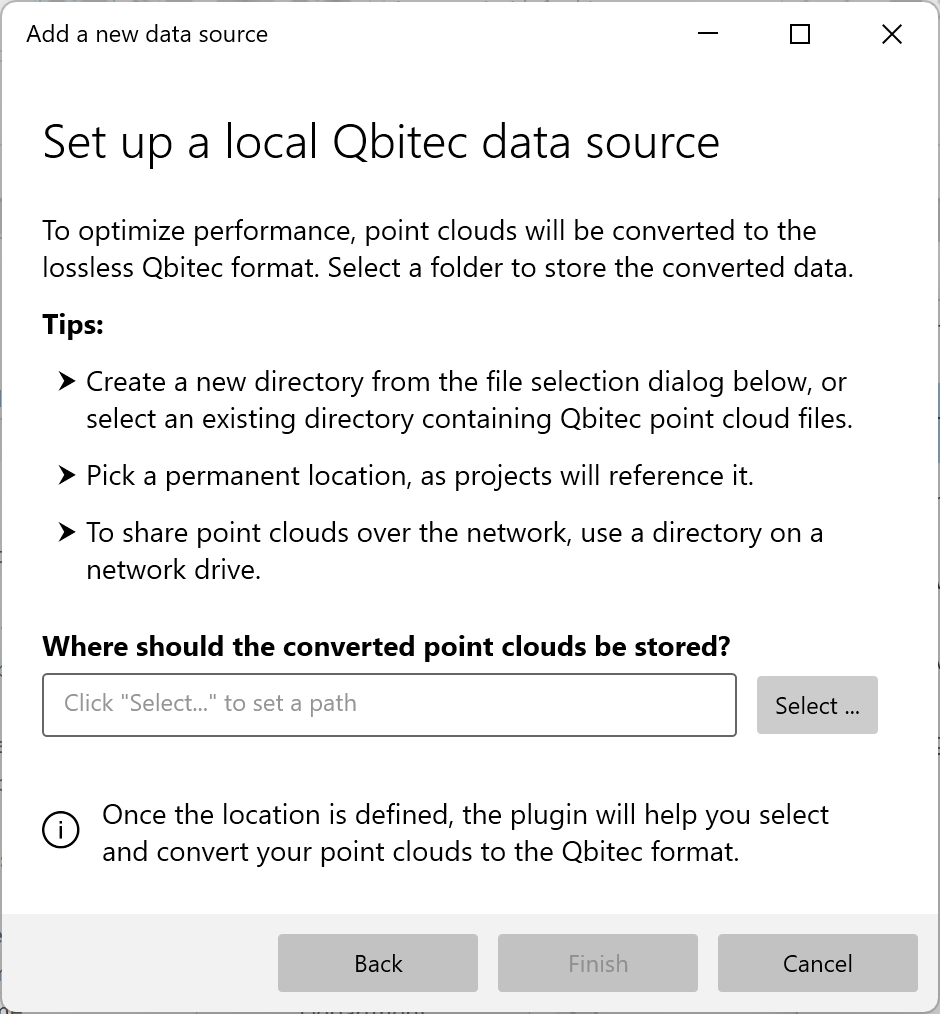
Point clouds that are not available in the Qbitec format—such as files in E57, Autodesk ReCap, or LAS/LAZ format—must first be converted.
The selected target path refers to the folder where the converted point clouds will be stored, not the location of the original source data.
Once a valid folder is selected click on the Finish button to complete the wizard.
To convert your first point cloud see Point Cloud Conversion for more details.