Point Cloud Display Settings
Settings are stored per view
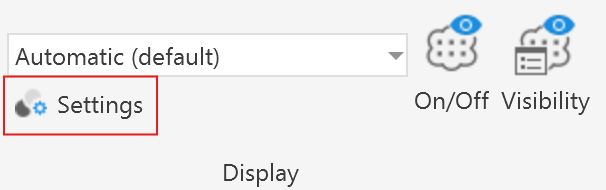
Predefined Point Sizes
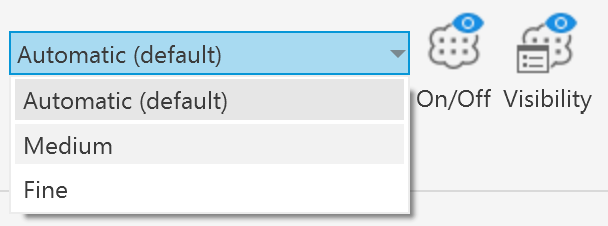
Automatic (default)
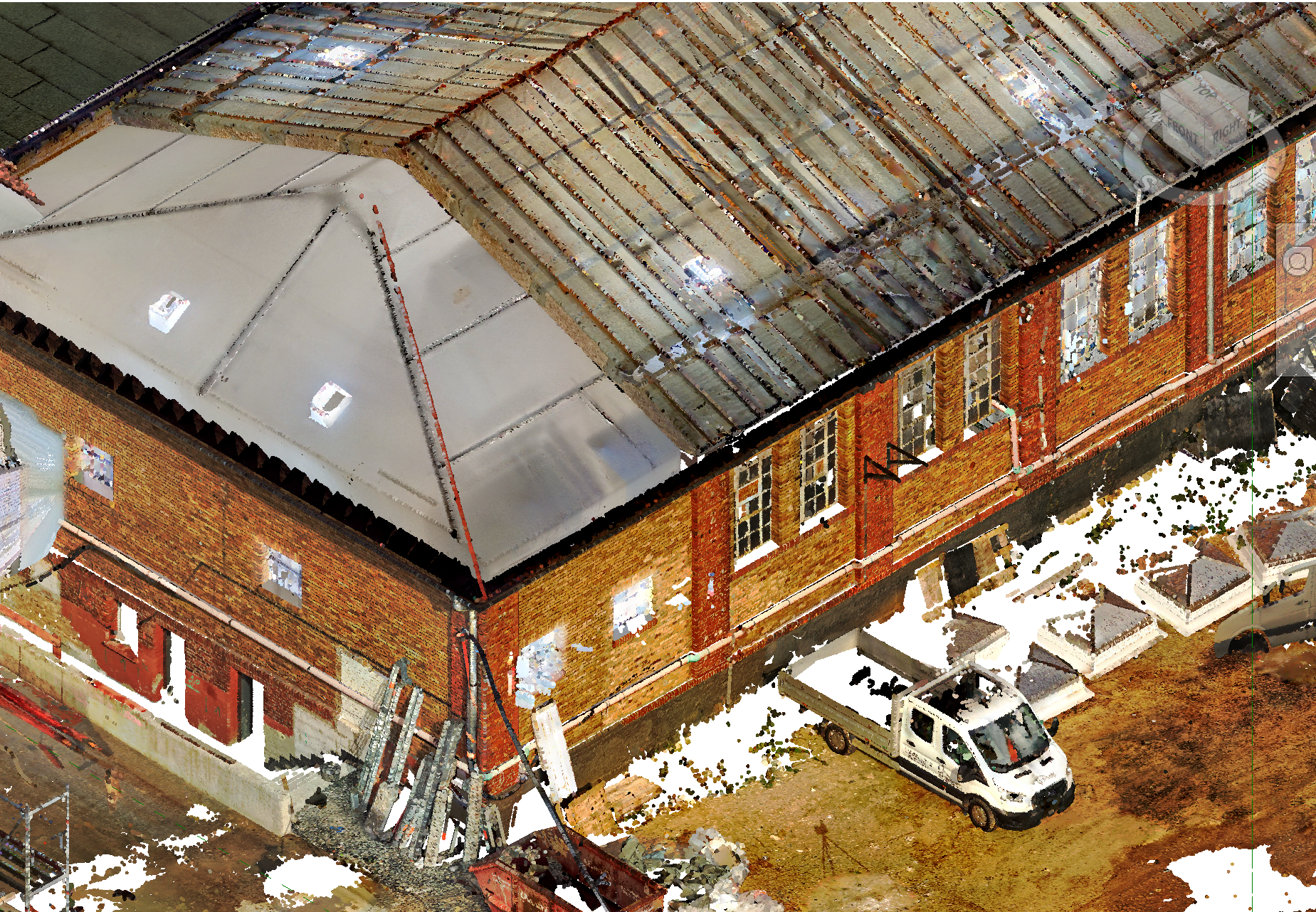
Medium
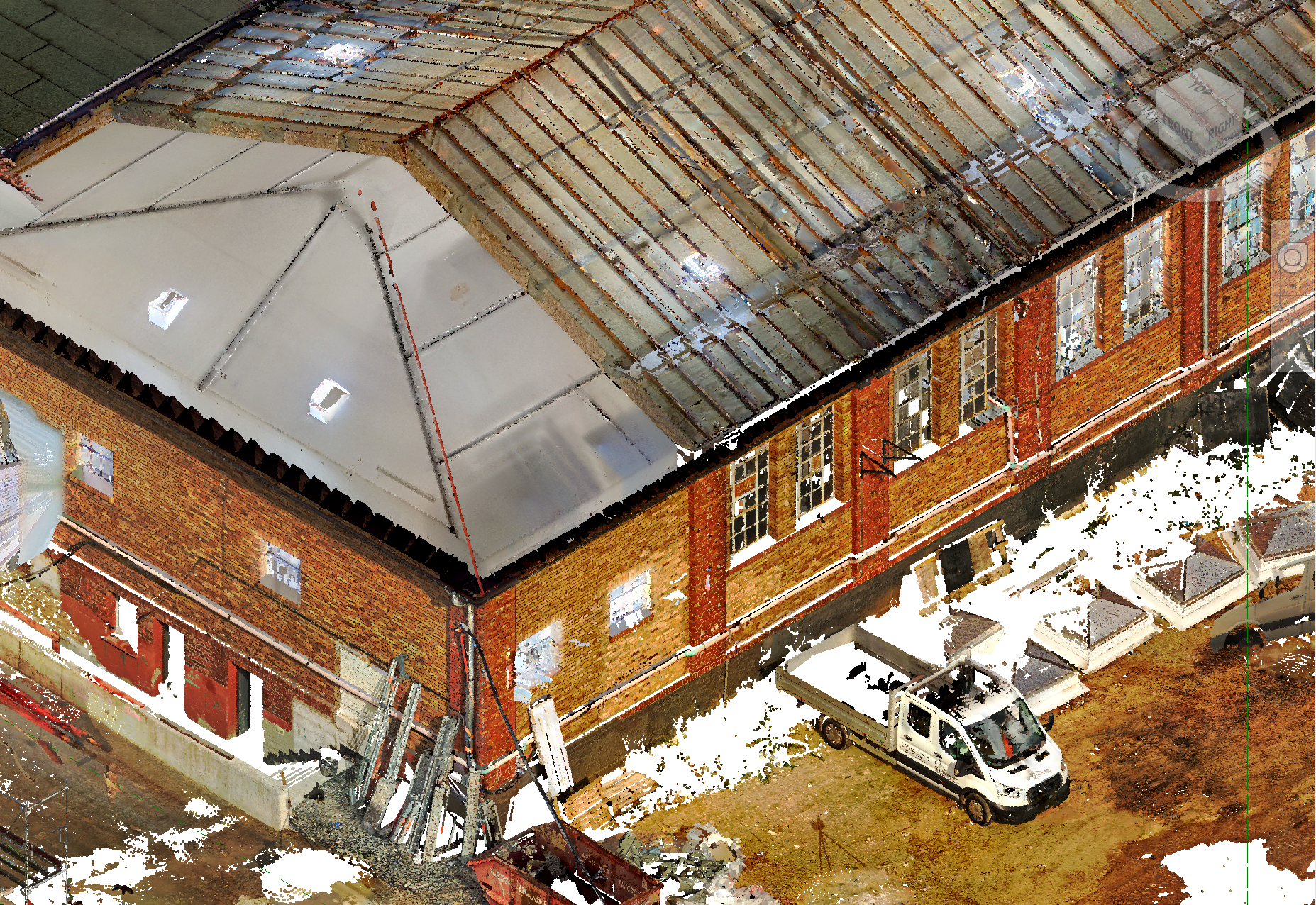
Fine
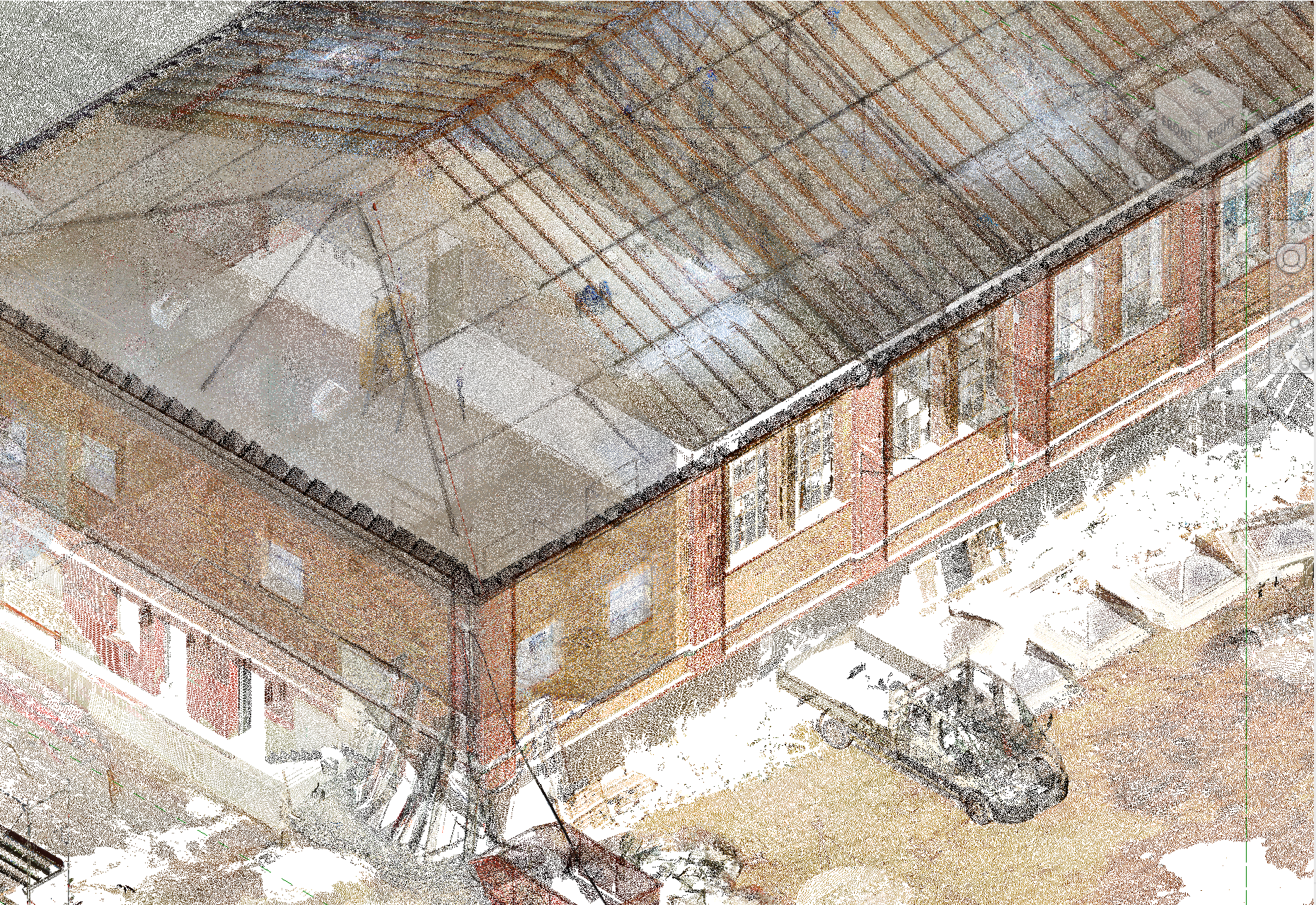
Custom Settings
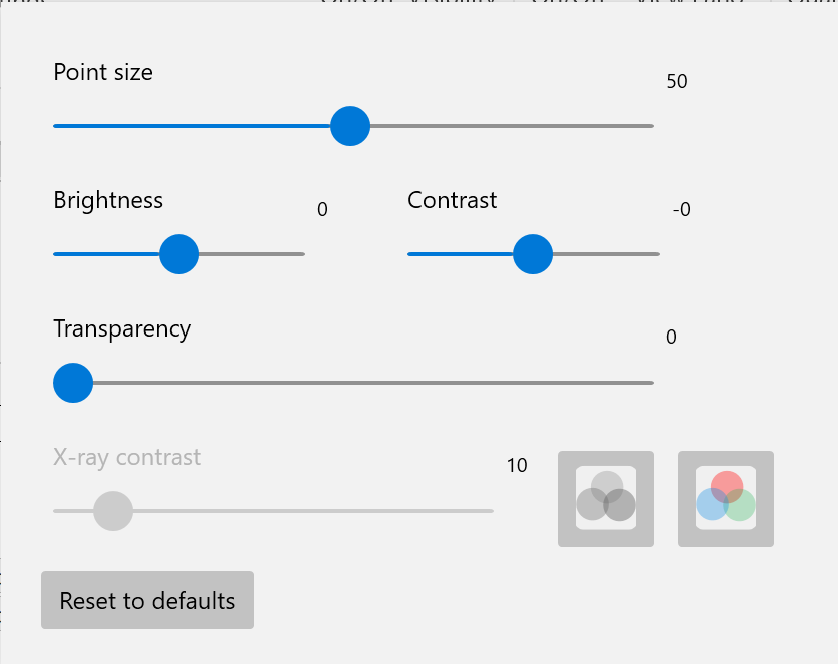
Point Size
Brightness and Contrast
Transparency
X-Ray Contrast
Reset to default button
Visibility of All Point Clouds
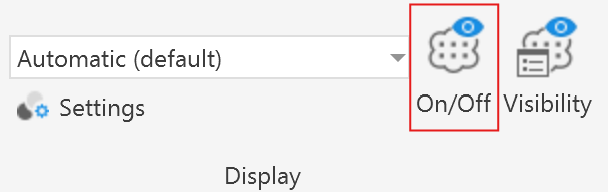
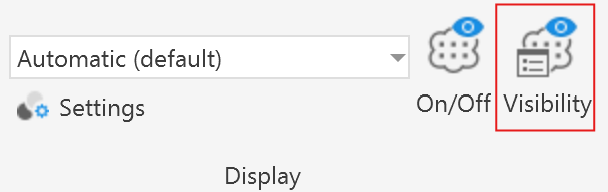
With the On/Off-button depicted in this screenshot, it is possible to toggle the visibility of all point clouds in the current view at once.
Visibility of Individual Point Clouds
The hide and show individual point clouds first click on the Visibility-button.
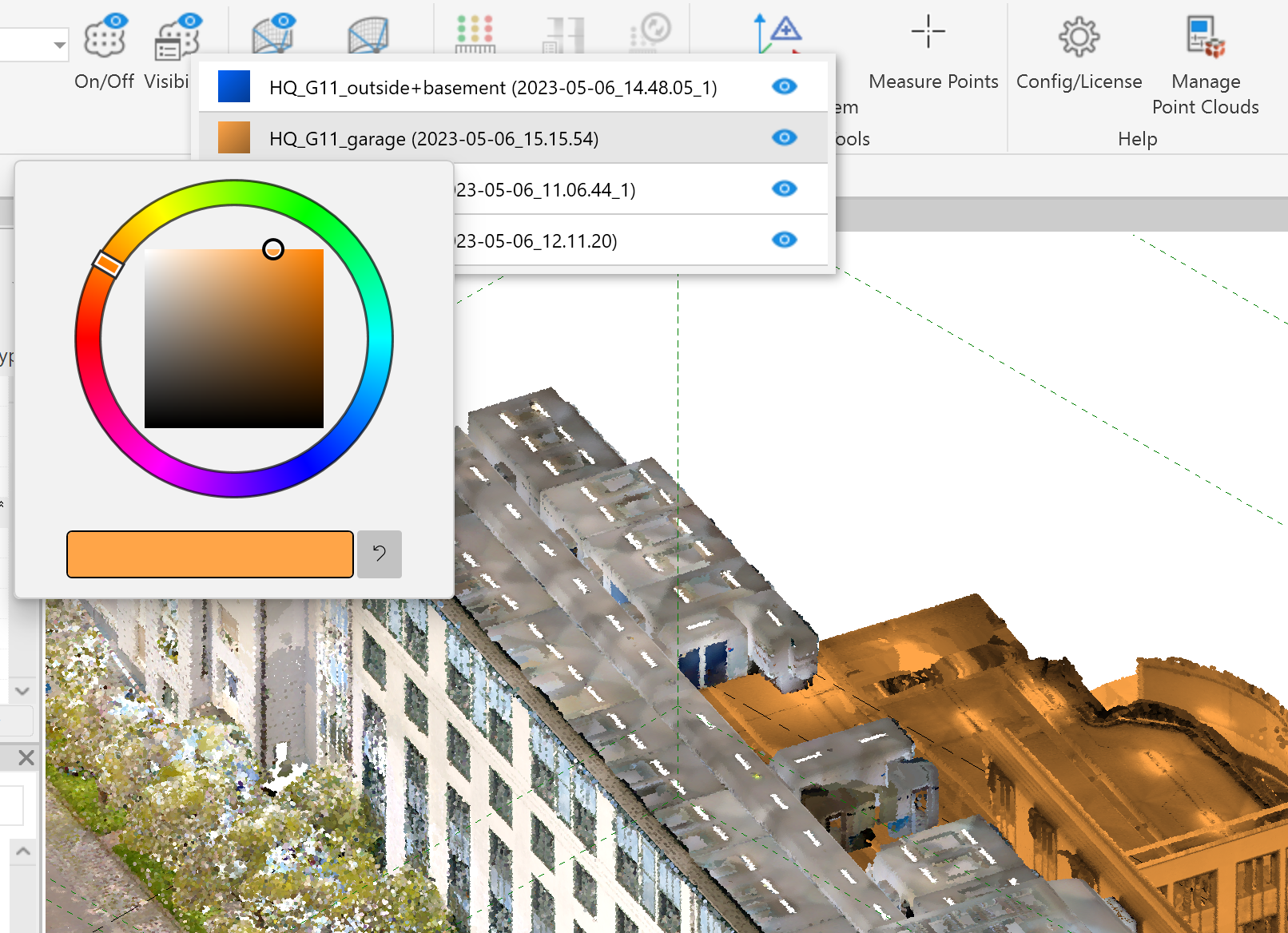
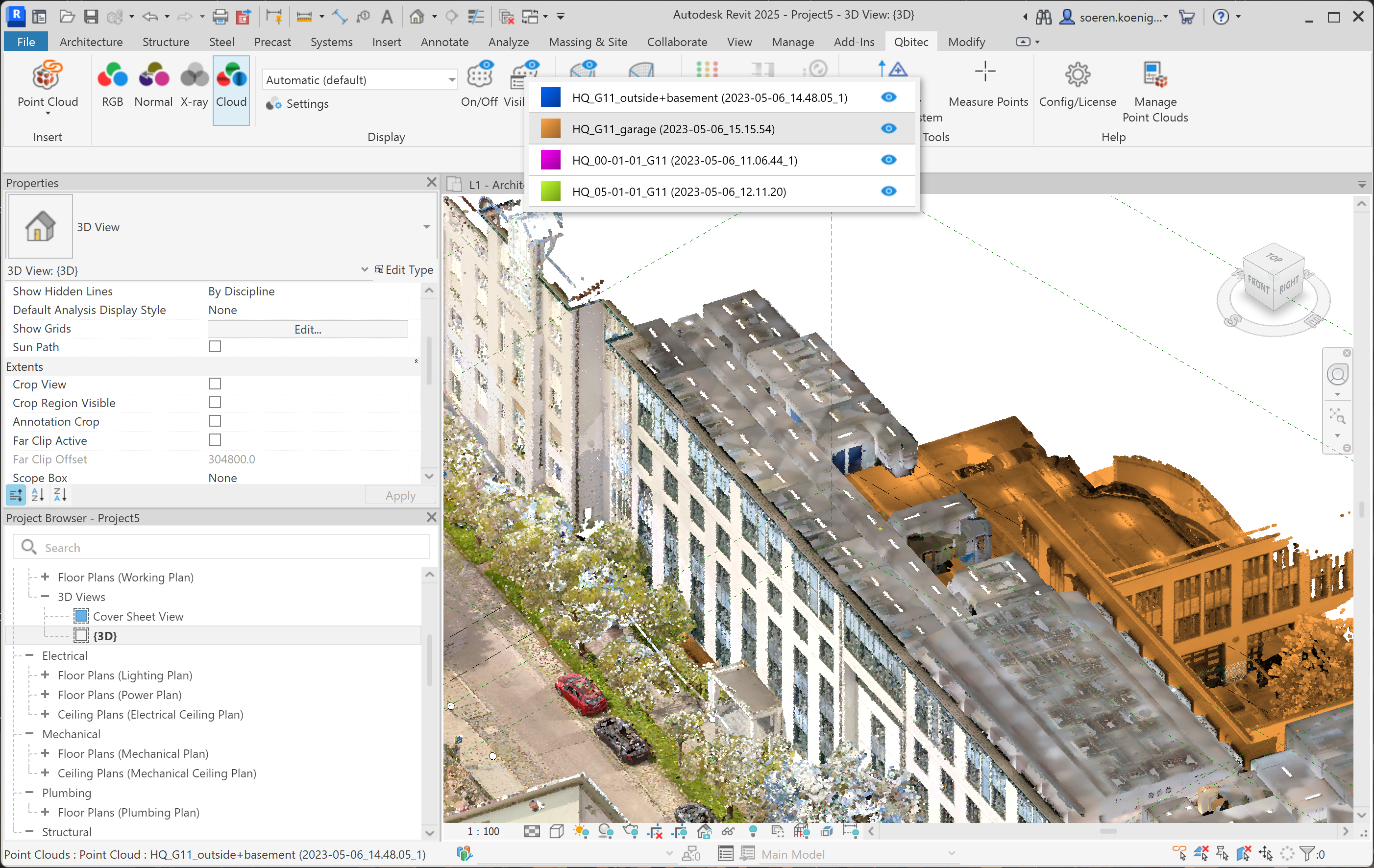
This opens a list of all point clouds in the scene. When a specific point cloud is selected it is highlighted by its associated color while non selected point clouds are displayed with its normal RGB colors.
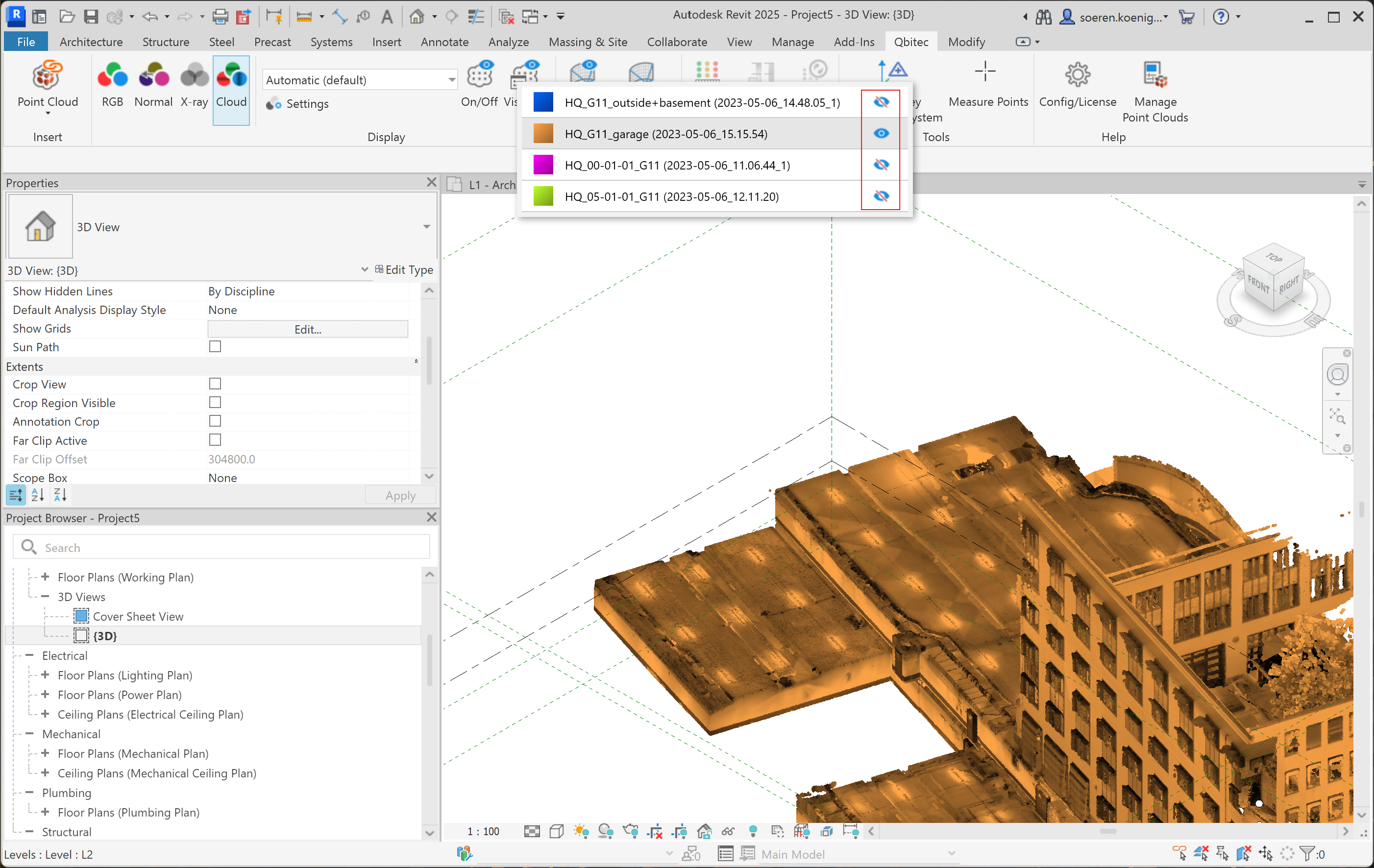
To hide or show single point clouds you can use the blue eye symbol button behind each cloud in the list. In the example The blue, pink and green point clouds are hidden and only the orange one is shown.
If you are not satisfied with the automatically assigned colors, you can change them by clicking on the colored rectangle in front of the point cloud name.