
Displaying Panoramic Images
Opening and Navigating inside Panoramic Views
When a point cloud with associated panoramic images is inserted into Autodesk Revit, the individual panorama positions are displayed as spheres in the 3D view. This allows the modeler to quickly identify the correct images based on their physical locations.
Panoramic photos help the modeler recognize and verify details that may not be sufficiently visible in the point cloud itself, such as signage, labels, or other small textual elements.
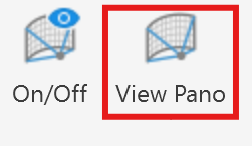
To open a panoramic view, first click View Pano, and then select the corresponding panorama sphere. The panoramic image will open in a new Revit view. This new view can be undocked or configured as a side-by-side split view, among other layout options. The Revit Panorama symbols are sometimes hidden behind the displayed point cloud. You can either make use of the X-ray render mode or make the point cloud transparent to make them visible.
To navigate within the panorama, use the right mouse button to rotate the view and the mouse wheel to zoom in or out.
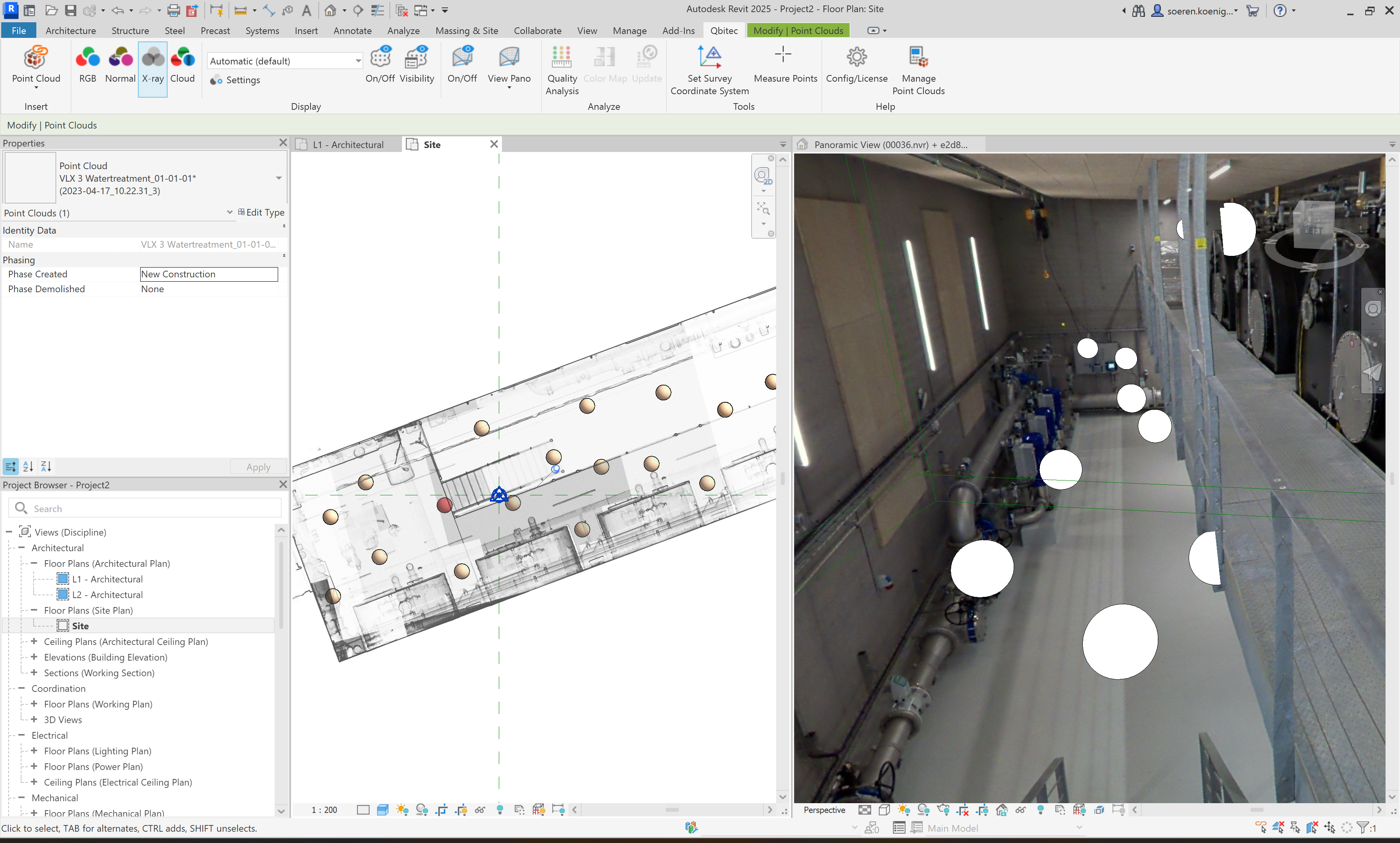
When the panorama view is no longer needed, the window can simply be closed. Alternatively, you can switch to another panorama using the View Pano button again. In that case, the existing panorama window will be reused to display the newly selected view.
Show/Hide Panoramic Image Symbols
If the panoramas are not required, or if the displayed panorama spheres interfere with the modeling process—for example by obscuring important details—they can be hidden in the respective 3D view.
To do so, click the Panorama On/Off button to toggle the visibility of the panorama symbols.
Creating a Panoramic View Template
Often, users want to configure personalized view settings for panoramic views. To avoid repeating this process for each newly opened panorama, a template can be created to automatically apply these settings.
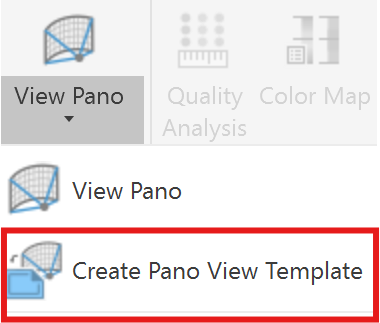
The Create Pano View Template command saves the settings of the currently active panoramic view into a Revit view template named QbitecPanoViewTemplate. This template is automatically applied to newly created panoramic views.
What it does
- Captures the current display and view settings of the active pano view.
- Saves these settings in a view template with the fixed name QbitecPanoViewTemplate.
- Applies this template automatically to future panoramic views.
- Panoramic views that are already open are not affected.
The settings are applied without forcing the view to stay bound to the template. This means the pano view remains fully editable and view-specific adjustments can still be made at any time.
Behavior when a template already exists:
If a view template named QbitecPanoViewTemplate already exists, it will be overwritten when the command is executed.